Importing and Exporting Contacts
You can import and export contacts and companies from and to a CSV file, e.g. to migrate from another CRM.
Importing Data
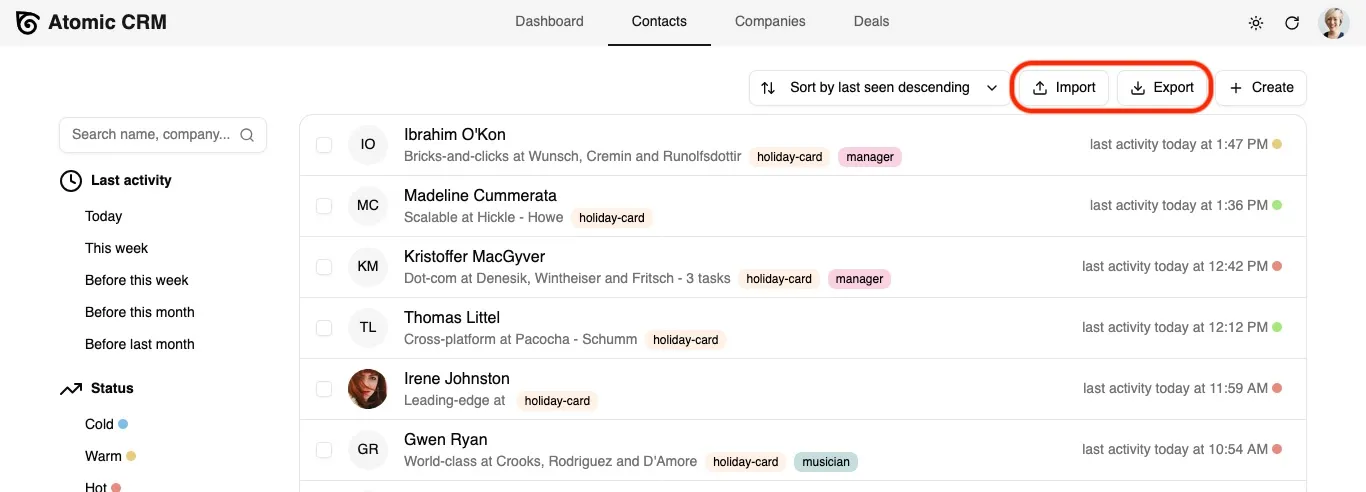
Section titled “Importing Data”Atomic CRM displays an import contact buttons in the initial user onboarding page, and in the contacts page. When clicking on it, a modal is displayed to upload a CSV file.
An example of the expected CSV file is available in the contact import modal:
first_name,last_name,gender,title,background,first_seen,last_seen,has_newsletter,status,tags,linkedin_url,company,email_work,email_home,email_other,phone_work,phone_home,phone_otherJohn,Doe,male,Sales Executive,,2024-07-01T00:00:00+00:00,2024-07-01T11:54:49.95+00:00,false,in-contract,"influencer, developer",https://www.linkedin.com/in/johndoe,Acme,john@doe.example,john.doe@gmail.com,jdoe@caramail.com,659-980-2015,740.645.3807,(446) 758-2122Jane,Doe,female,Designer,,2024-07-01T00:00:00+00:00,2024-07-01T11:54:49.95+00:00,false,in-contract,"UI, design",https://www.linkedin.com/in/janedoe,Acme,,,jane@doe.example,659-980-2020,740.647.3802,When importing contacts, companies and tags will be automatically matched if they exist on the system, or imported otherwise.
Exporting Data
Section titled “Exporting Data”In the contacts and companies pages, an export button allows to download the list of contacts or companies in CSV format.
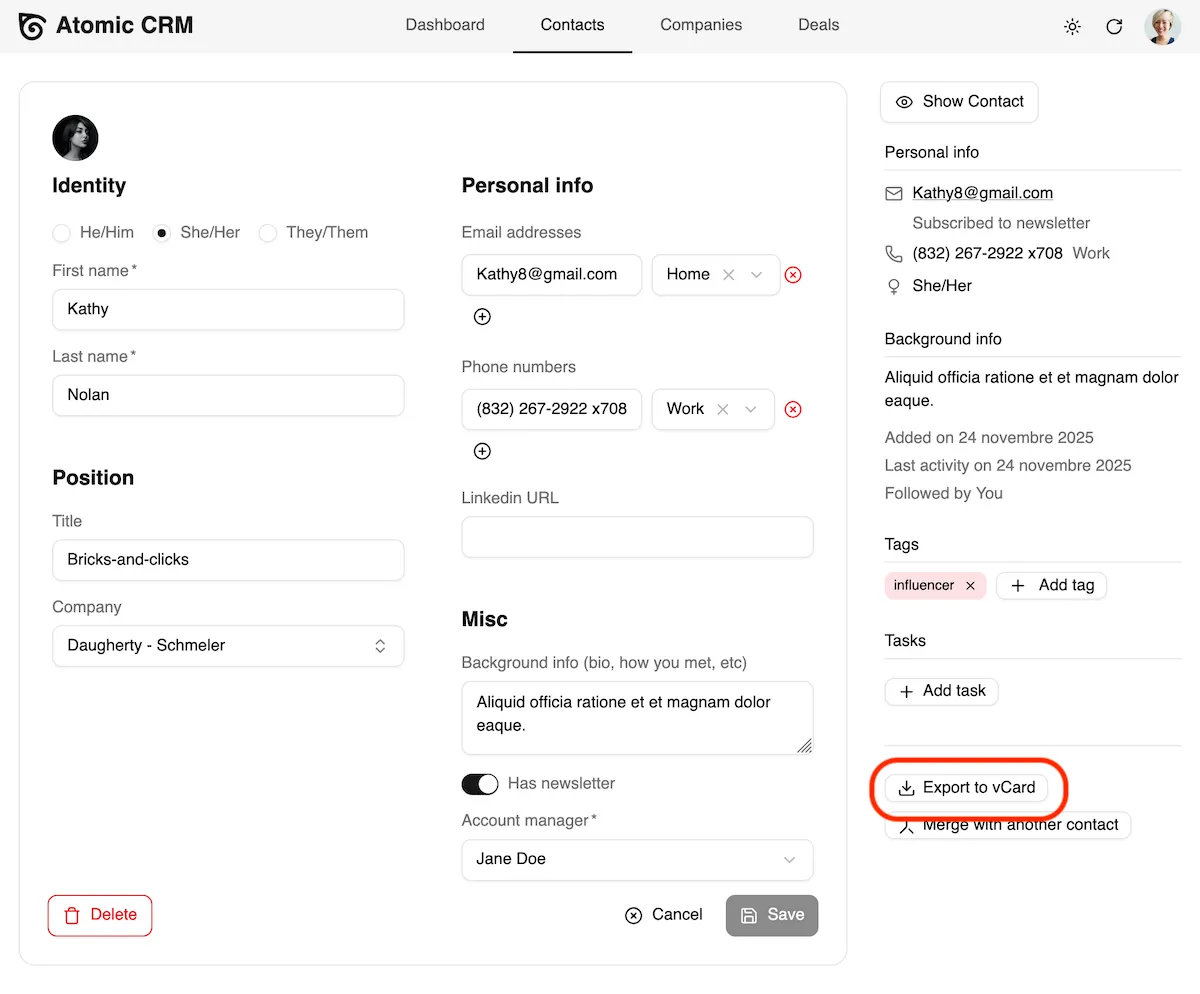
You can also export a single contact as a vCard file from the aside panel in the Contact Edit page.