

Importing and Exporting Data
Whether you are starting to use Atomic CRM, or want to migrate from another CRM, you can import your contacts, companies, tasks, notes, tags and deals in a few clicks. You can also export your contacts and companies in CSV format, and your contacts as vCard files.
Import Contacts From CSV
Section titled “Import Contacts From CSV”Atomic CRM displays an import contact buttons in the initial user onboarding page, and in the contacts page. When clicking on it, a modal is displayed to upload a CSV file.
An example of the expected CSV file is available in the contact import modal:
first_name,last_name,gender,title,background,first_seen,last_seen,has_newsletter,status,tags,linkedin_url,company,email_work,email_home,email_other,phone_work,phone_home,phone_otherJohn,Doe,male,Sales Executive,,2024-07-01T00:00:00+00:00,2024-07-01T11:54:49.95+00:00,false,in-contract,"influencer, developer",https://www.linkedin.com/in/johndoe,Acme,john@doe.example,john.doe@gmail.com,jdoe@caramail.com,659-980-2015,740.645.3807,(446) 758-2122Jane,Doe,female,Designer,,2024-07-01T00:00:00+00:00,2024-07-01T11:54:49.95+00:00,false,in-contract,"UI, design",https://www.linkedin.com/in/janedoe,Acme,,,jane@doe.example,659-980-2020,740.647.3802,When importing contacts, companies and tags will be automatically matched if they exist on the system, or imported otherwise.
Export Contacts To CSV
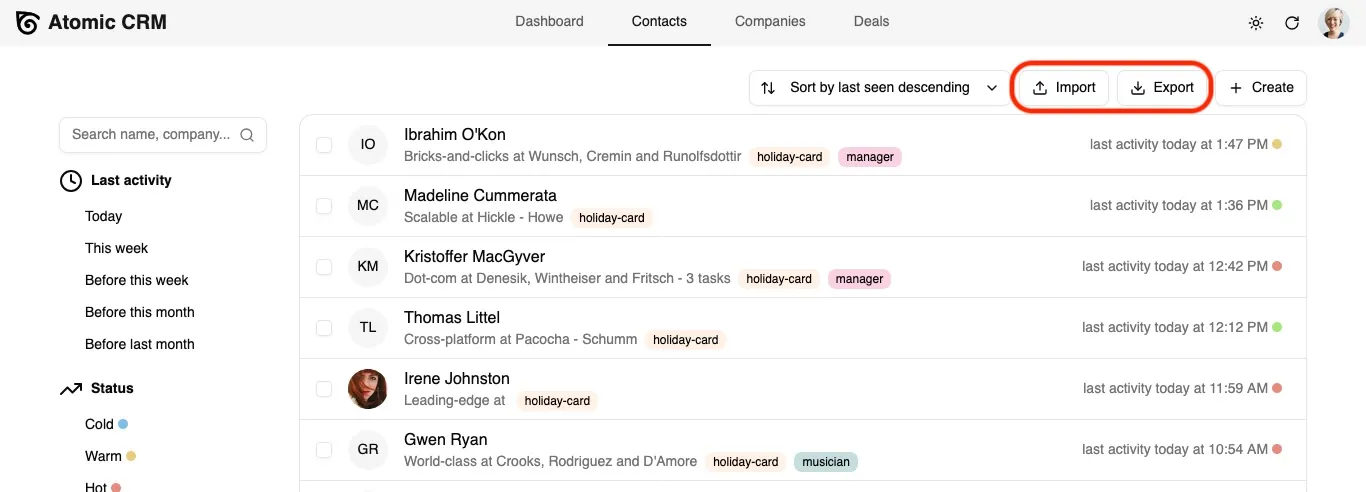
Section titled “Export Contacts To CSV”In the contacts and companies pages, an export button allows to download the list of contacts or companies in CSV format.
Export Contacts To vCard
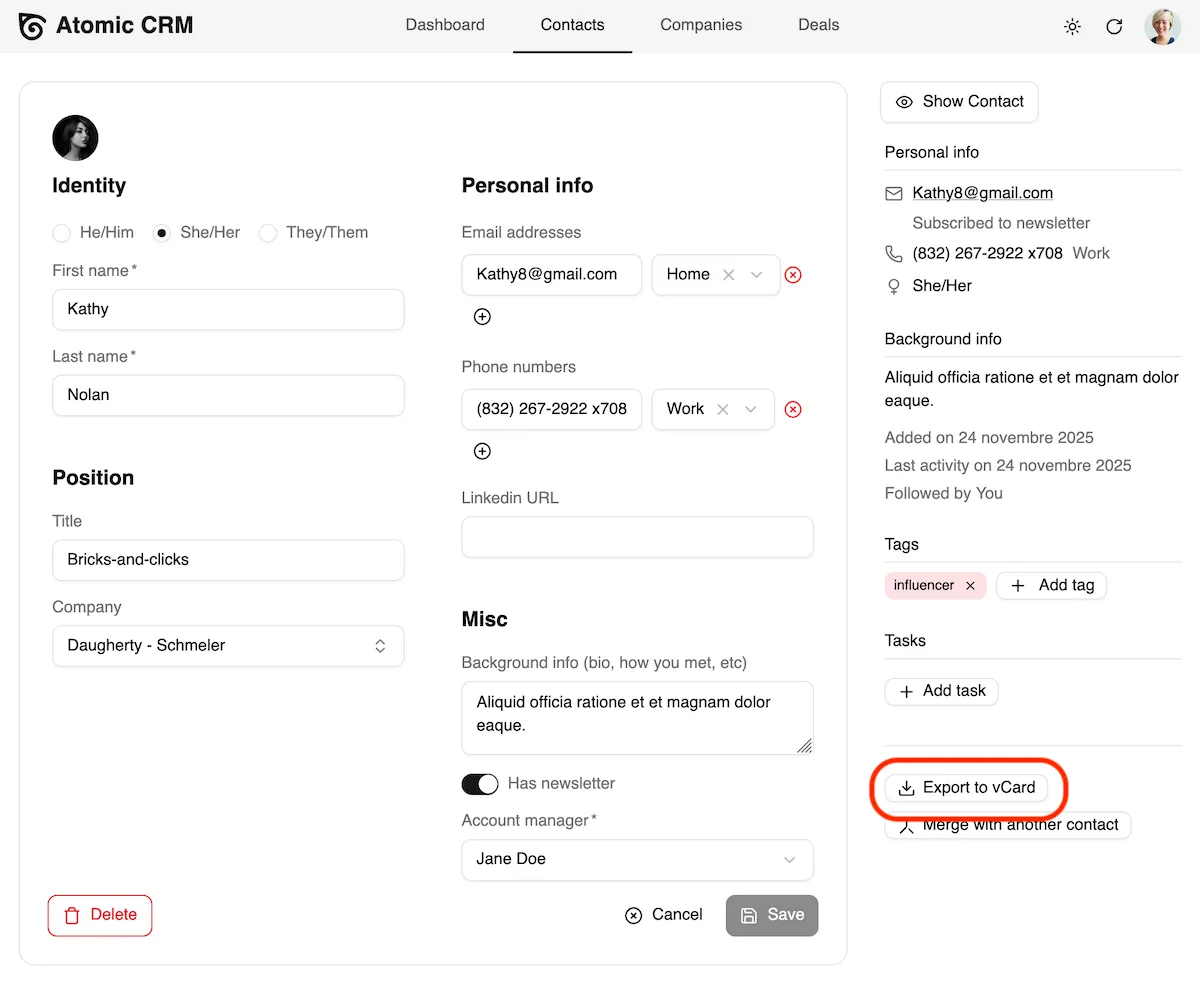
Section titled “Export Contacts To vCard”You can also export a single contact as a vCard file from the aside panel in the Contact Edit page.
Migrating From Another CRM
Section titled “Migrating From Another CRM”Atomic CRM allows to import contacts, companies, tasks, notes, tags and deals from a single JSON file. You can create this JSON file from the export of your previous CRM. The expected format of the JSON file looks like the following:
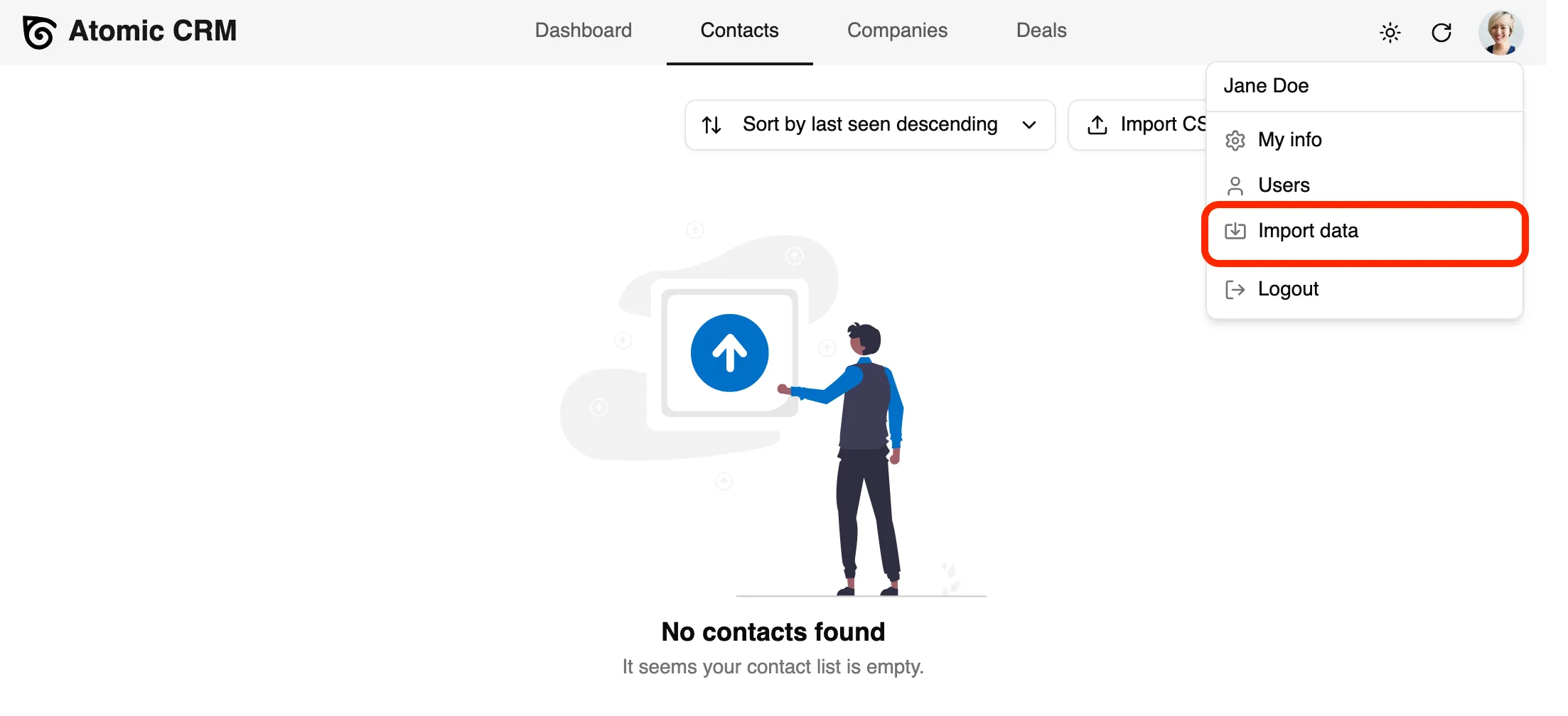
{ "sales": [ { "id": 123, "first_name": "Barney", "last_name": "Calhoun", "email": "barney.calhoun@blackmesa.com" } ], "companies": [ { "id": 234, "name": "Black Mesa Research Facility", "sector": "industrials", "size": 250, "website": "https://blackmesa.com", "linkedin_url": "https://linkedin.com/company/black-mesa", "phone_number": "+1-505-555-0001", "revenue": "$500M", "tax_identifier": "12-3456789" }, { "id": 345, "name": "Aperture Science", "description": "We do what we must because we can", "city": "Cleveland", "country": "USA", "address": "Deep underground facility", "zipcode": "99999", "state_abbr": "OH", "sector": "industrials", "size": 500, "linkedin_url": "https://linkedin.com/company/aperture-science", "website": "https://aperturescience.com", "phone_number": "+1-216-555-0100", "revenue": "$2B", "tax_identifier": "98-7654321", "context_links": [ "https://aperturescience.com/research", "https://aperturescience.com/portal-technology" ], "sales_id": 123 } ], "contacts": [ { "id": 456, "first_name": "Gordon", "last_name": "Freeman", "gender": "male", "has_newsletter": false }, { "id": 567, "first_name": "Cave", "last_name": "Johnson", "title": "CEO & Founder", "company_id": 345, "background": "Visionary entrepreneur. Believes in the power of science. May or may not have turned himself into a computer.", "linkedin_url": "https://linkedin.com/in/cavejohnson", "gender": "male", "has_newsletter": true, "sales_id": 123, "emails": [ { "email": "cave.johnson@aperturescience.com", "type": "Work" } ], "phones": [ { "number": "15551234567", "type": "Work" } ], "tags": ["VIP", "Science"] } ], "notes": [ { "contact_id": 456, "sales_id": 123, "text": "Still refuses to speak. Communication continues to be challenging.", "date": "2025-11-13T08:16:10Z" }, { "contact_id": 567, "sales_id": 123, "text": "Discussed new testing initiative involving portals.\n\nCave mentioned something about combustible lemons. Need to follow up on R&D budget.", "date": "2025-02-14T09:20:21Z", "attachments": [ { "url": "https://aperturescience.com/files/combustible-lemons-proposal.pdf", "name": "combustible-lemons-proposal.pdf" } ] } ], "tasks": [ { "contact_id": 456, "sales_id": 123, "text": "Send crowbar maintenance kit" }, { "contact_id": 567, "sales_id": 123, "text": "Schedule moon rock conversion demo", "due_date": "2025-03-26T16:15:00Z", "done_date": "2025-04-01T09:00:00" } ]}To display the import page, click on the User menu in the top right corner, and click on “Import data”.
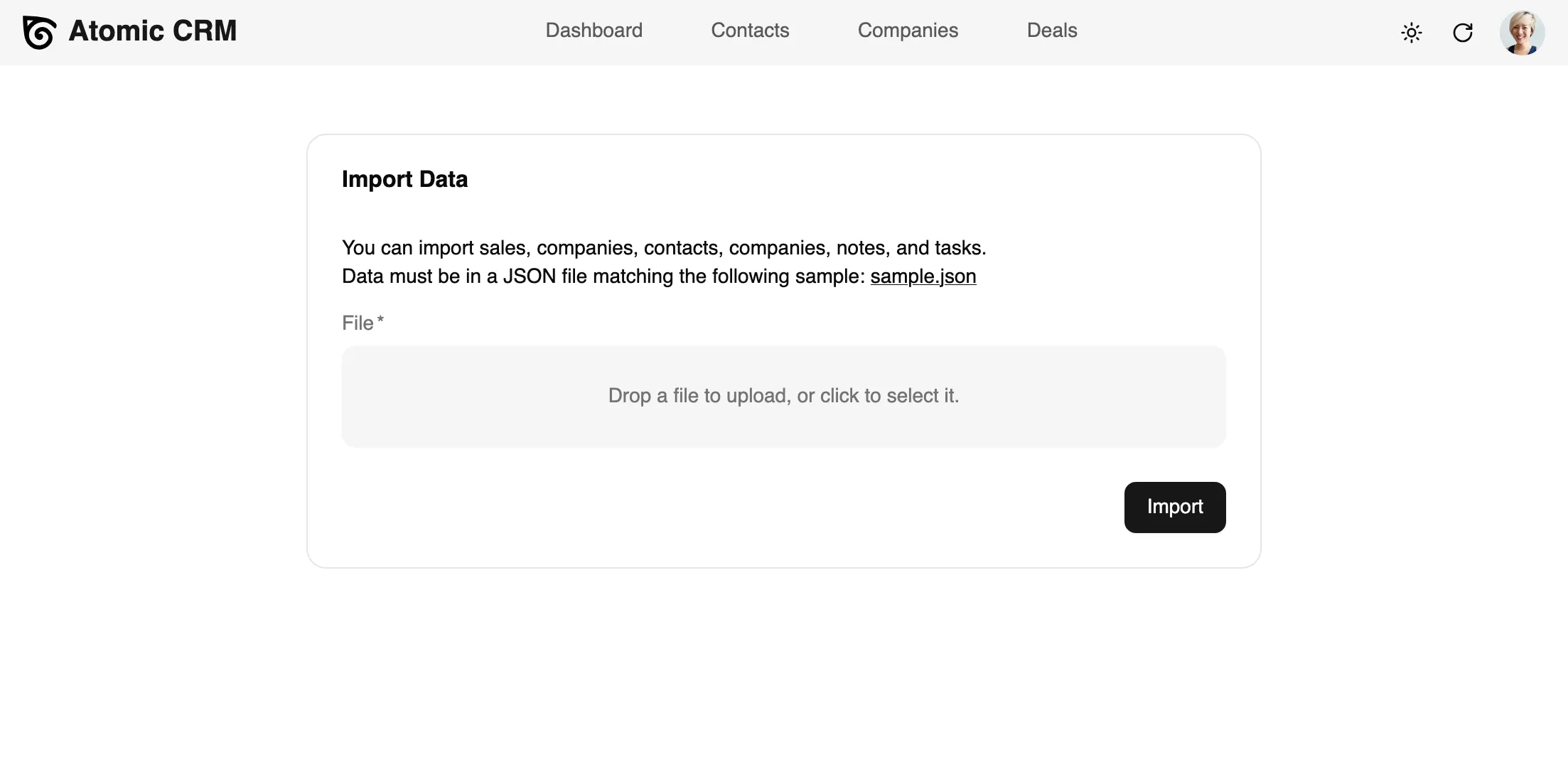
A form displays to upload a JSON file. You can download a sample JSON file to see the expected format.
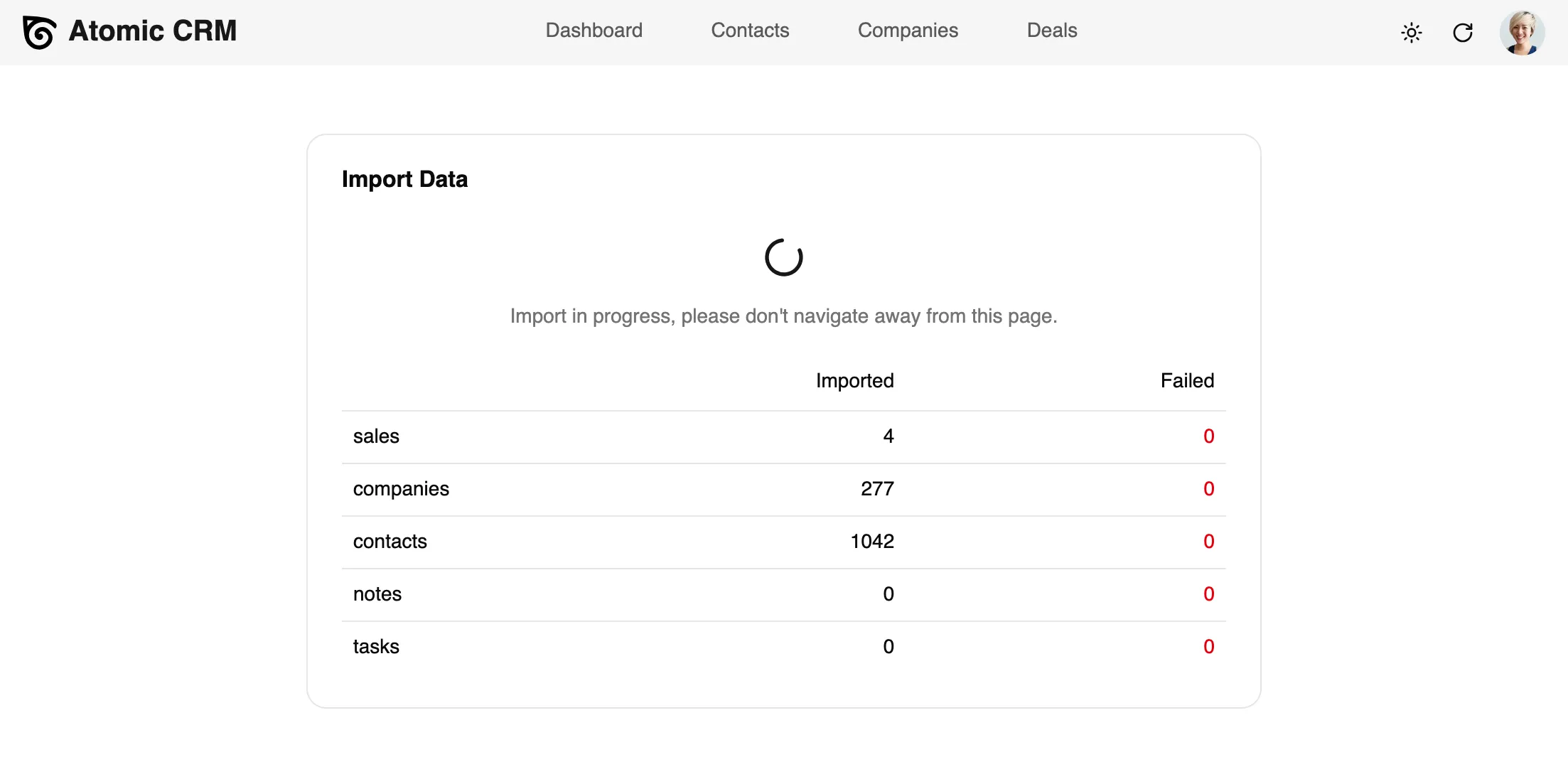
Once you launch the import, the page will show the progress of the import, and display any error if the import fails.
This migration tool will allow you to easily migrate from your previous CRM to Atomic CRM, and start using it in a few clicks.