

Global Search
Global search looks across every record type at once, so you can find a note by a phrase you remember without knowing which contact it belongs to.
Opening the search
Section titled “Opening the search”On desktop, click the Search box in the top bar, or press Ctrl+K (Cmd+K on macOS) from anywhere in the app. The shortcut is ignored while you are typing in a field, so it never interrupts a note you are writing.

On mobile, tap the magnifier in the header. It is available on every screen, and the search then takes the whole screen.
What is searched
Section titled “What is searched”| Record | Searched fields |
|---|---|
| Companies | name, sector, description, website, phone, zip code, city, state |
| Contacts | first and last name, job title, background, emails, phones |
| Deals | name, category, description |
| Tasks | text, type |
| Notes (contact and deal) | note text, attachment file names |
Archived deals and completed tasks are left out, along with notes attached to an archived deal.
Searching with several words
Section titled “Searching with several words”Every word must appear in the same record, as the start of a word: tho and
finds Thomas Anderson, but homas finds nothing. Accents and case are ignored,
so helene finds Hélène.
Only the record’s own fields count: searching sourdough Anderson does not
find a note about sourdough written on Thomas Anderson, since his name belongs
to the contact, not to the note.
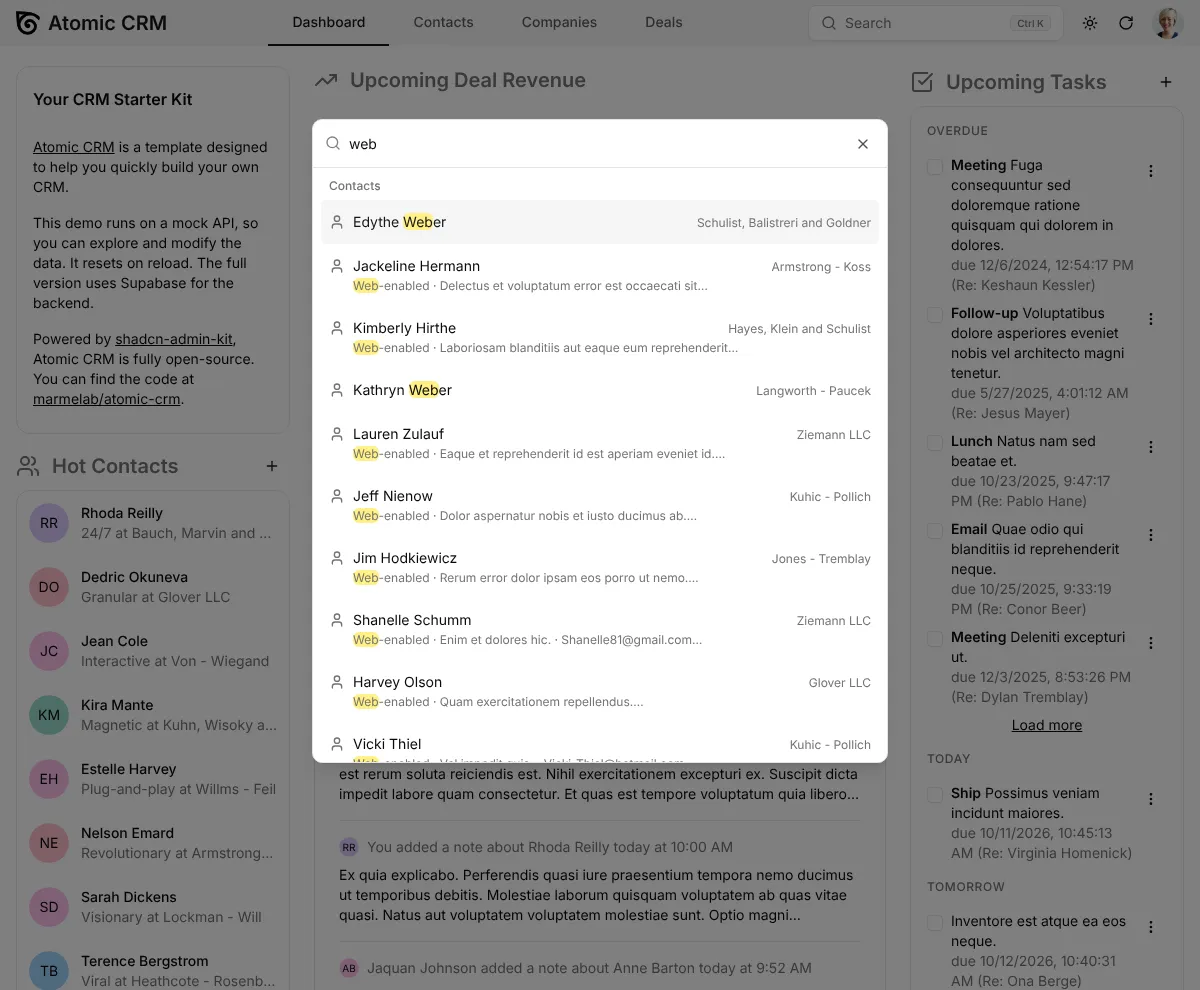
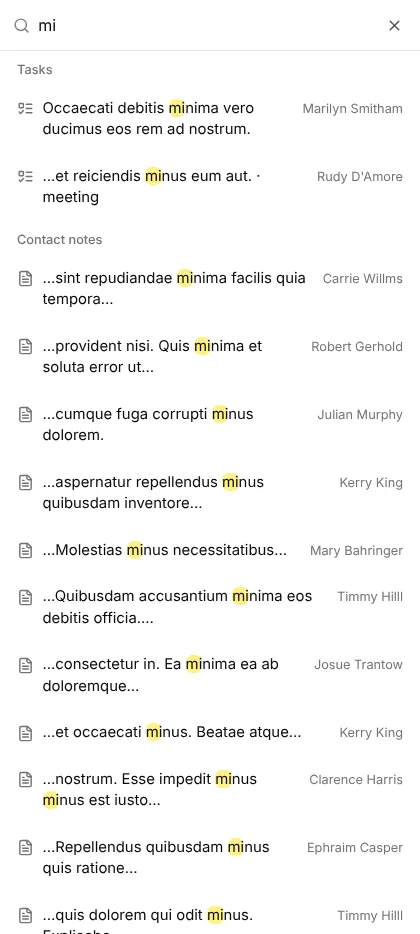
Matched words are highlighted. When the match is not in the result’s name, an excerpt of the field it was found in shows under it.
On mobile, the results of notes and tasks show the excerpt in place of the start of their text:
Good to know
Section titled “Good to know”- Search starts at 2 characters.
- Results are capped at 50, most recent first, with no pagination. Add a word to narrow them down rather than scrolling.
- Deals and deal notes do not appear on mobile, which has no deal screen to open.
- On desktop, the page-specific searches (the search box on the Contacts page, and so on) are unchanged and still filter their own list. The mobile contact list has no search box of its own: use the global search instead.