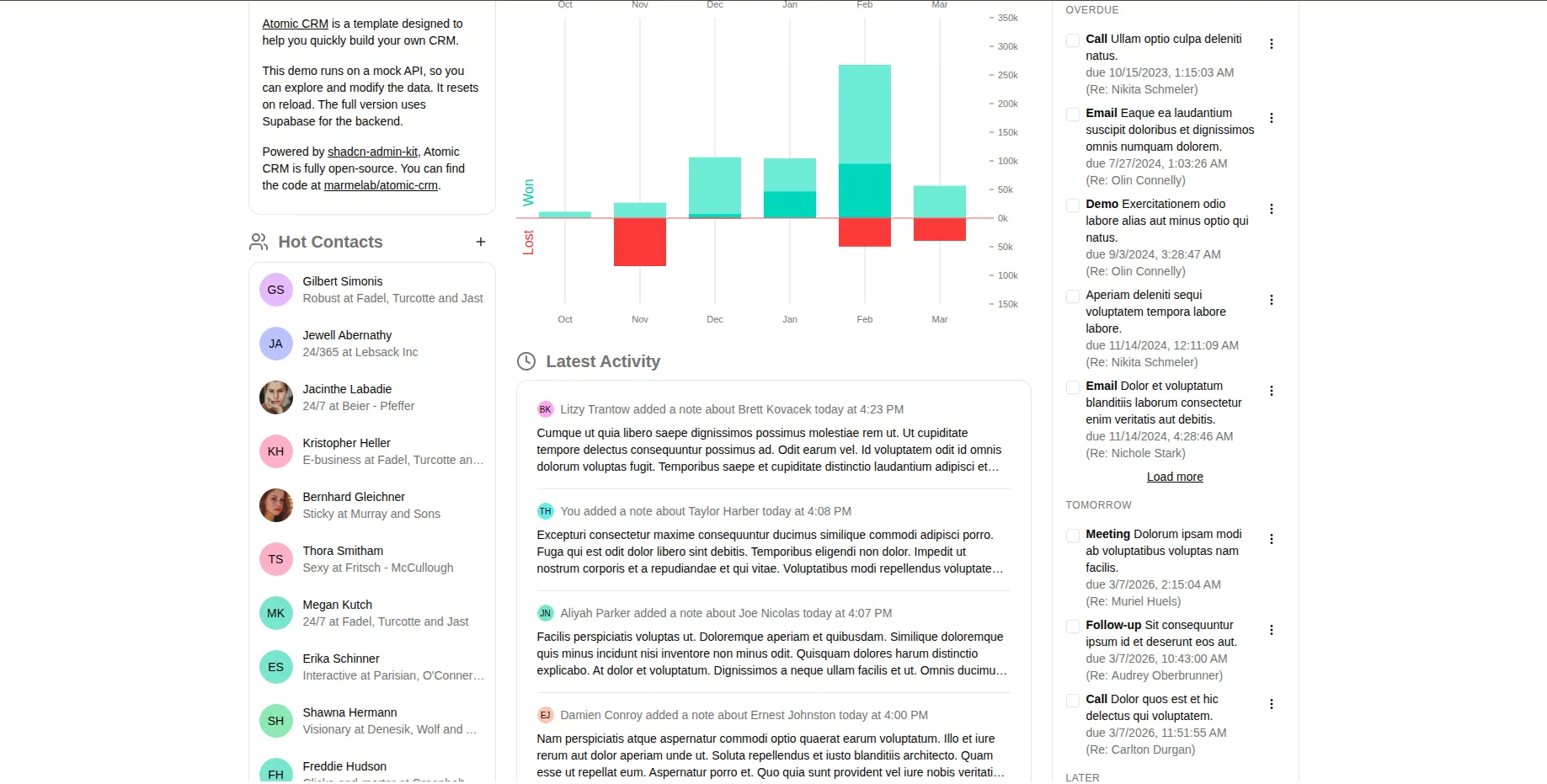
Atomic CRM March 2026 Updates


Atomic CRM 1.5 is out!
Since its first release, Atomic CRM has grown considerably. So much has happened in recent months that it now deserves its own blog post.
Read on to discover all the improvements and new features we’ve recently added to Atomic CRM.
In a Nutshell
- Shadcn/ui Replaces MUI
- SSO / SAML Support
- MCP Server
- Inbound Emails With Attachments
- Merge Contacts
- Export a Contact to vCard
- Mobile App
- Settings Page
- Mail Forwarding
- Migrating From Another CRM
- Markdown Notes
- Dense Note List With Note Summary
- Colored Contact Avatars
- Improved Contact Selection
- Improved Agent Experience (Skills, AGENTS.md, etc)
- OAuth Identity Provider
- Improved Documentation (incl. Custom Fields, MCP Server, etc)
- Easier Updates
Shadcn UI
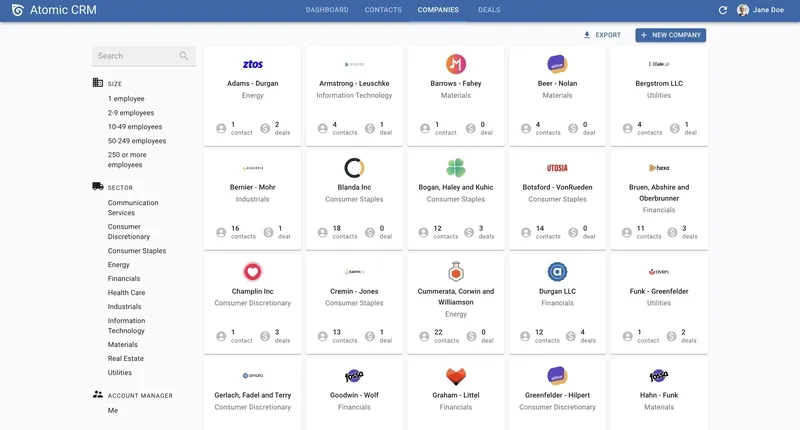
Atomic CRM has modernized its user interface by switching from MUI to shadcn ui. This change also makes the UI easier to customize and extend, as shadcn ui is built on top of Tailwind CSS and provides a set of unstyled, accessible components.
Before:
After:
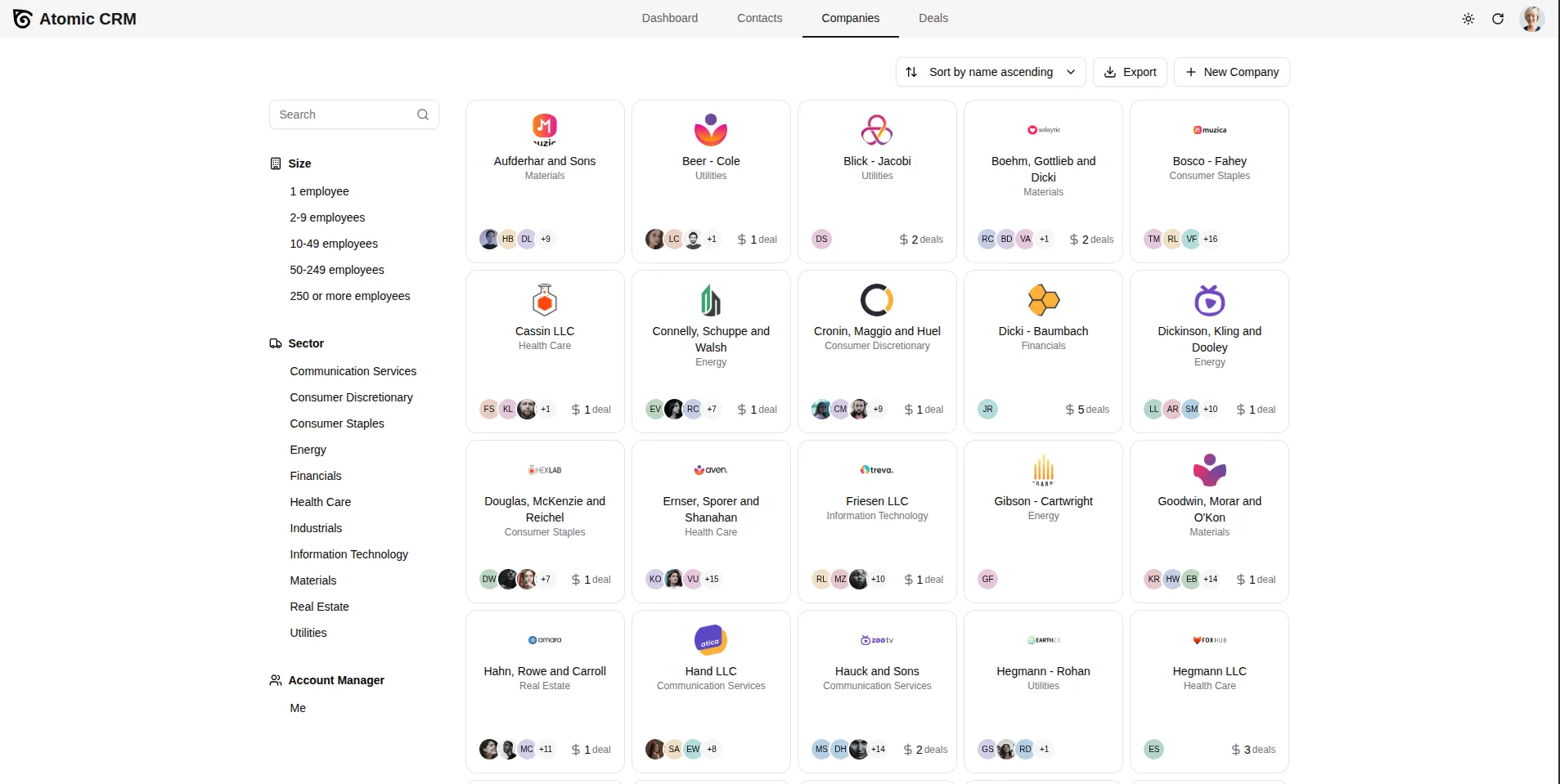
Under the hood, Atomic CRM has switched from react-admin to Shadcn Admin Kit as its admin framework. Both frameworks share the same architecture and API, so the migration was relatively straightforward.
SSO / SAML Support
This is the most popular request we’ve received since the launch of Atomic CRM, and it’s a feature no other CRM offers out of the box. So we are very excited to announce that Atomic CRM now supports SSO (Single Sign-On) authentication through SAML 2.0 (Security Assertion Markup Language).
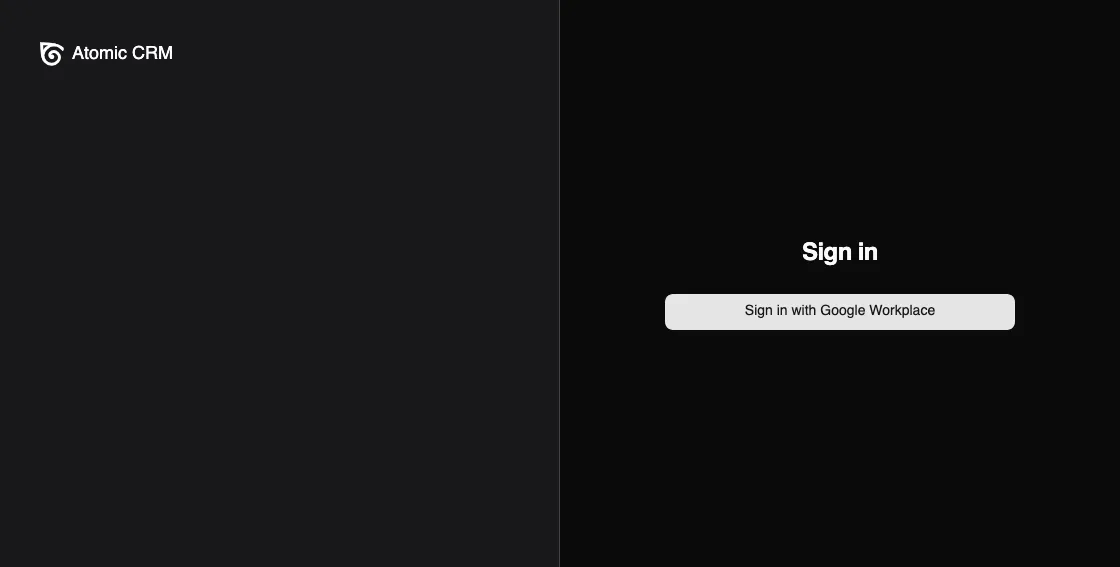
For more detailed setup, please refer to the Atomic CRM SSO documentation.
MCP Server
Have you ever wanted to interact with your CRM using an AI assistant like Claude Desktop or Visual Studio Code? There is now an MCP (Message Control Protocol) server that allows you to interact with the data stored in your Atomic CRM using an AI assistant.
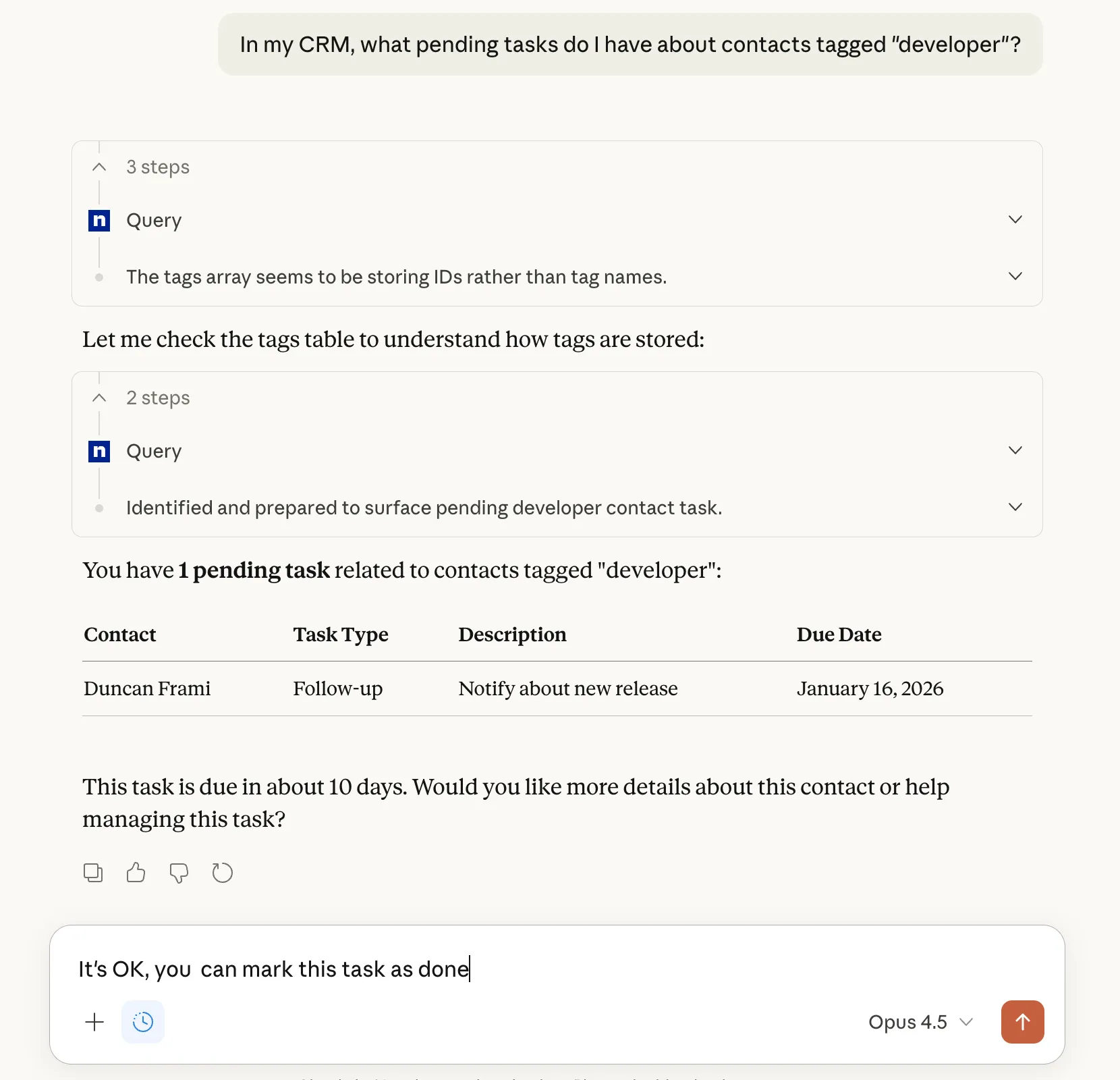
Combined with other MCP servers for other tools like Gmail, Google Calendar, Notion, etc, this opens up a lot of possibilities to automate your workflow and save time by letting the AI assistant handle repetitive tasks for you. For example:
Draft an email for all the contacts I met last week at the conference, using the context of our previous interactions, and mention the upcoming launch of our new product Acme.
or:
Find the CTO of all companies referenced in the Real estate sector that have more than 50 employees, and create a deal at the opportunity stage for each of them.
The MCP server is a third-party application that you need to install and run on your own infrastructure. You can find installation instructions in the Atomic CRM MCP Server GitHub repository.
The MCP server is currently available for the following AI assistants:
- Chat GPT
- Claude.ai
- Visual Studio Code
- Claude Desktop
- Claude Code
- Cursor
- Codex CLI
- Gemini CLI
Refer to the MCP Server documentation for detailed instructions concerning each AI assistant.
Inbound Emails With Attachments
When you send an email and cc Atomic CRM, the email attachments are also stored in the CRM. This allows you to keep all relevant information about a contact in one place.
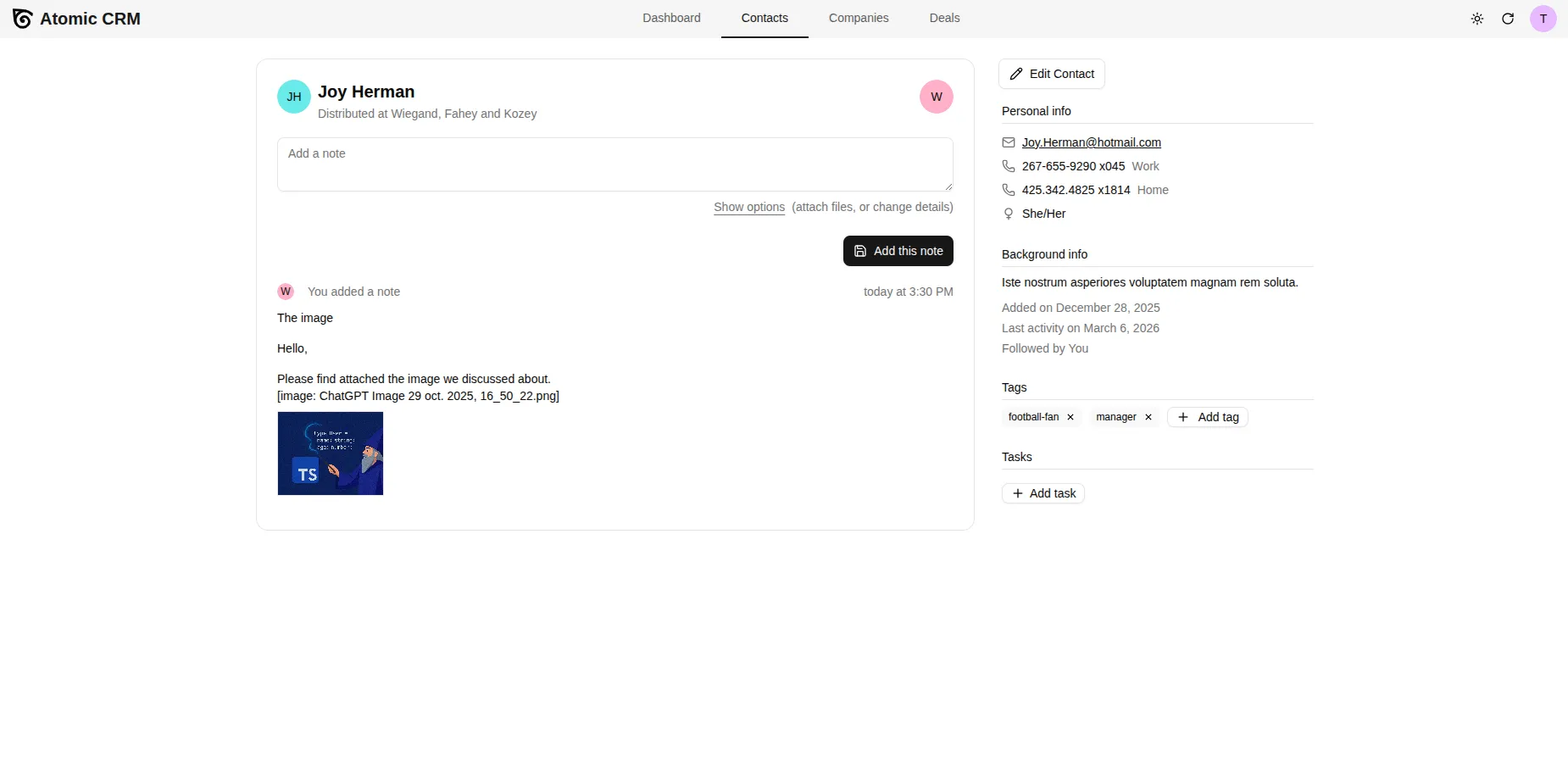
Merge Contacts
It is common to have duplicate contacts in your CRM. They can arise from various situations, such as:
- Importing contacts from several CSV files that contain overlapping data.
- Receiving an inbound email creates a new contact for a new email address instead of associating with an existing contact.
- Manually adding contacts without checking for existing entries.
Atomic CRM now allows you to merge duplicate contacts. On the Contacts page, select the contact you want to merge into another, then edit it. On the edition page, you will see a “Merge with another contact” button.
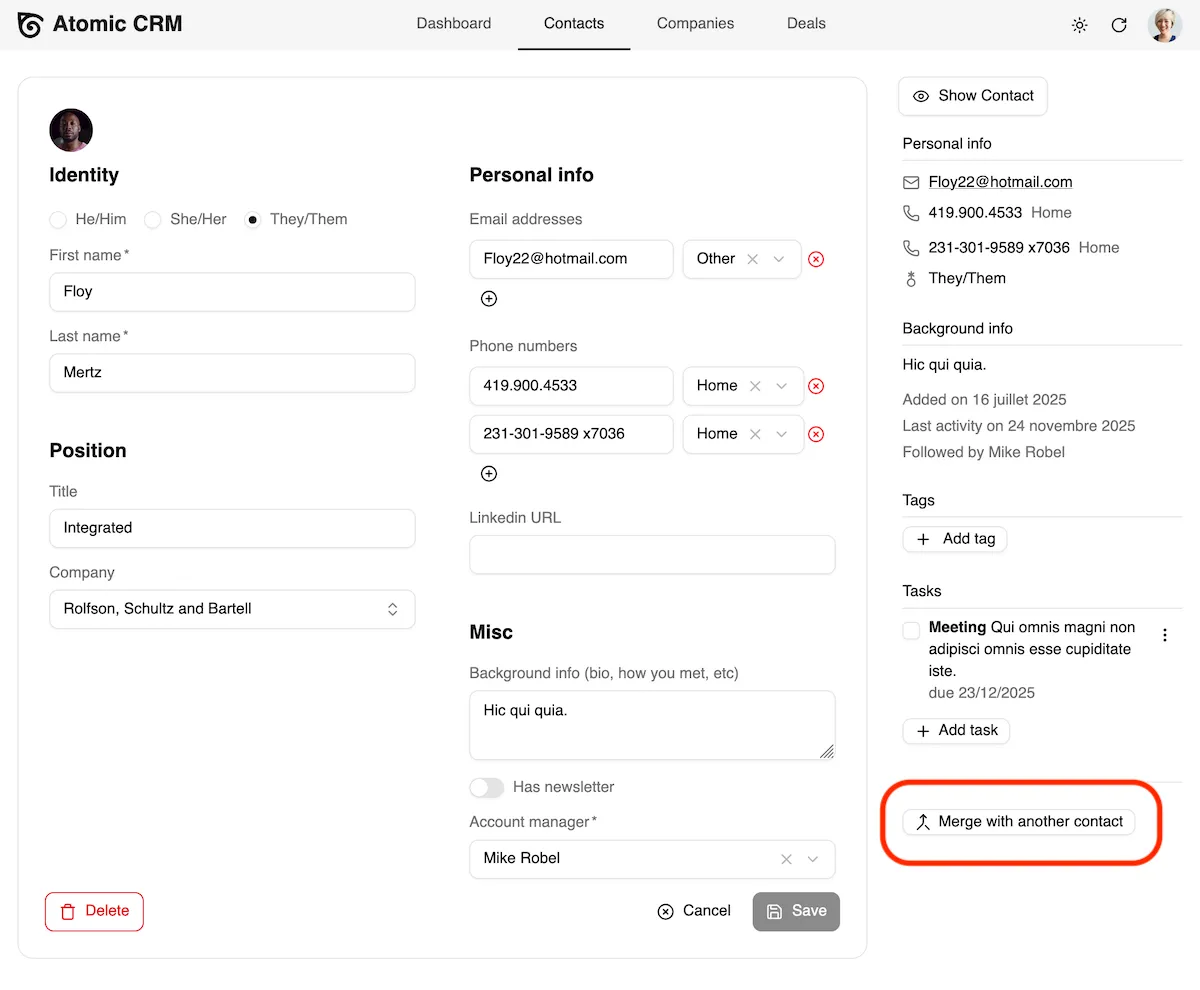
Clicking this button will open a dialog to let you choose the contact to merge with.
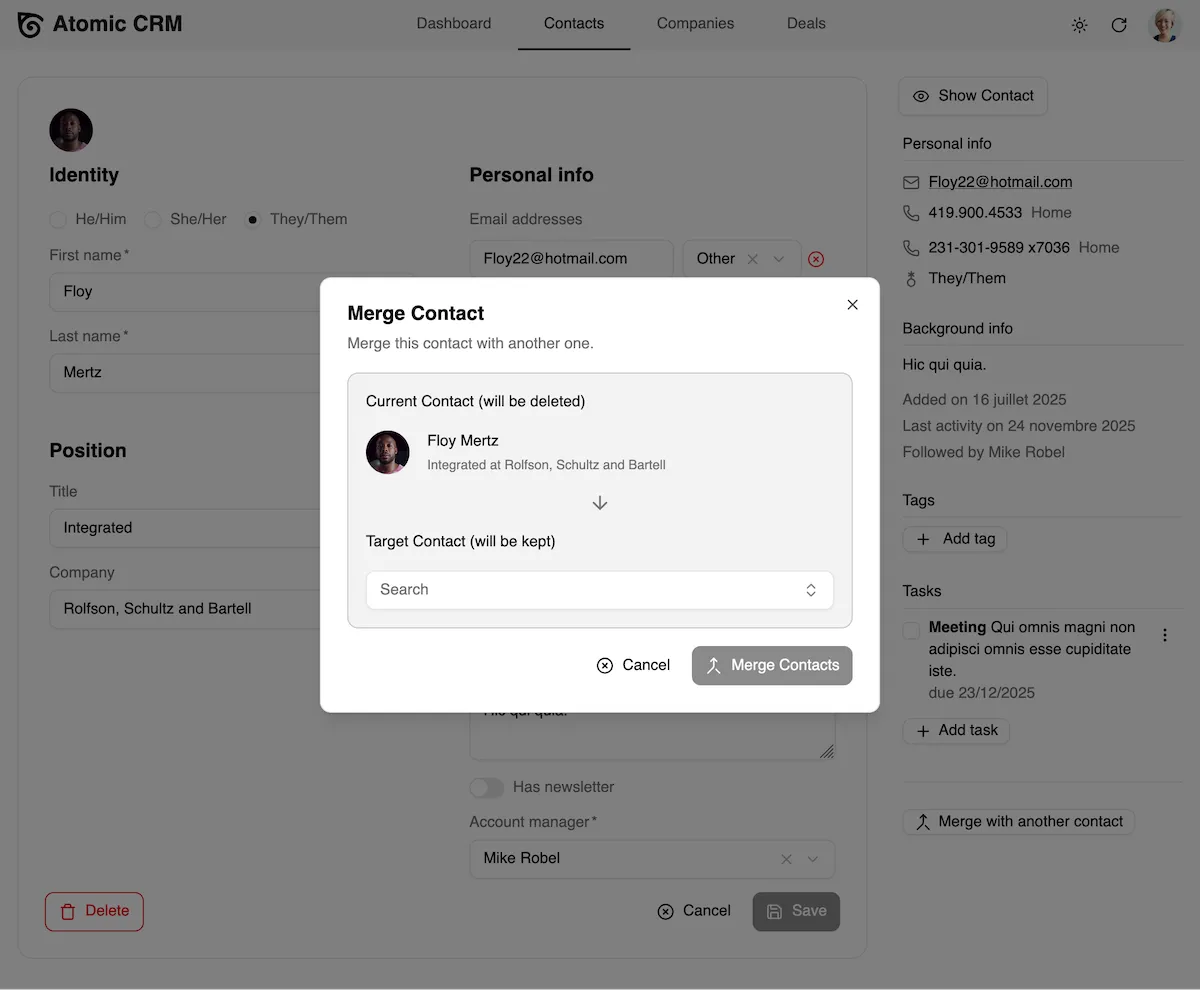
See the Merge contacts documentation for more details.
Export a Contact to vCard
You can now export a single contact as a vCard file from the side panel in the Contact Edit page.
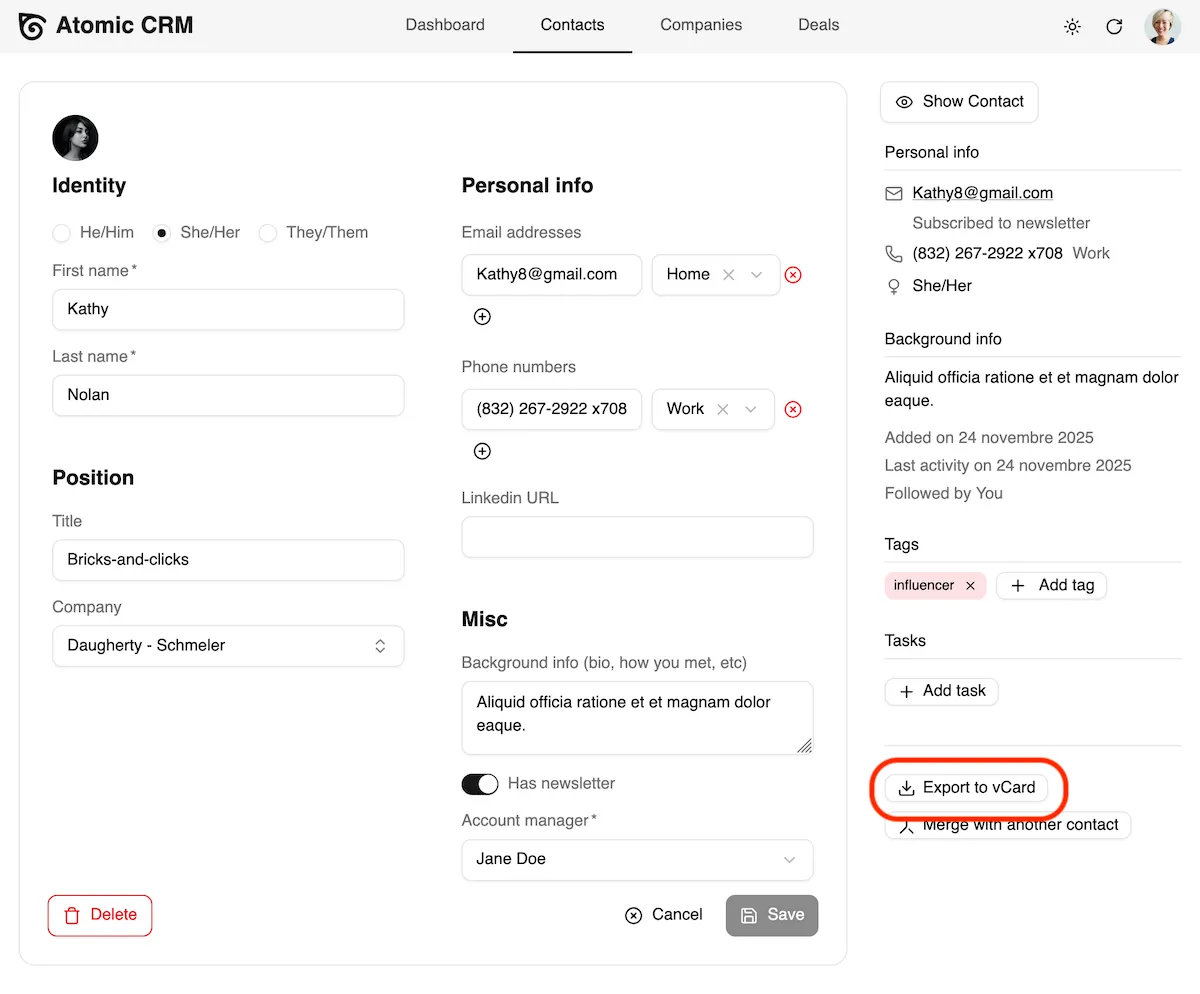
This allows you to easily share contact information with others or import it into other applications that support the vCard format, such as email clients, address books, or other CRM systems.
Mobile App
Atomic CRM now has a mobile-friendly user interface, redesigned from the ground up to help you when you’re not at your desk. The mobile app is optimized for small screens and touch interactions.
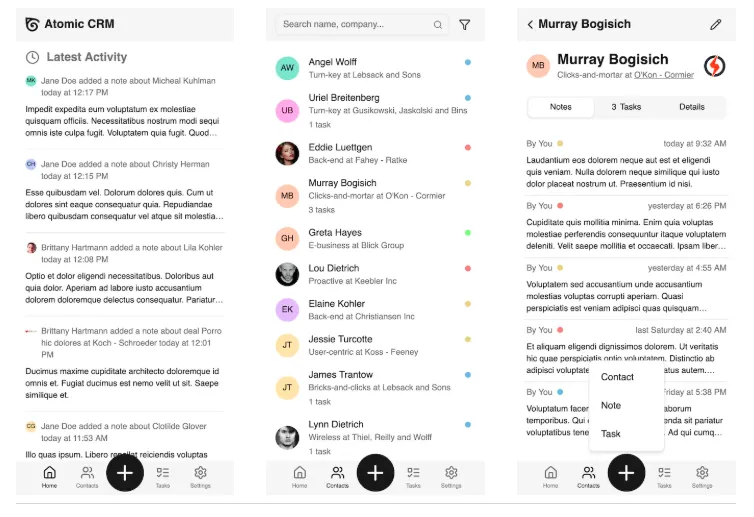
To get the mobile app, simply open Atomic CRM on your mobile browser. Atomic CRM is actually a Progressive Web App (PWA), so you’ll get an option to install it on your mobile device. Then, you can use it like a native app.
Atomic CRM mobile still works when you go offline. This means you can access the contacts and notes that you’ve already loaded even when you don’t have an internet connection.
See the Mobile App documentation for more details.
Settings Page
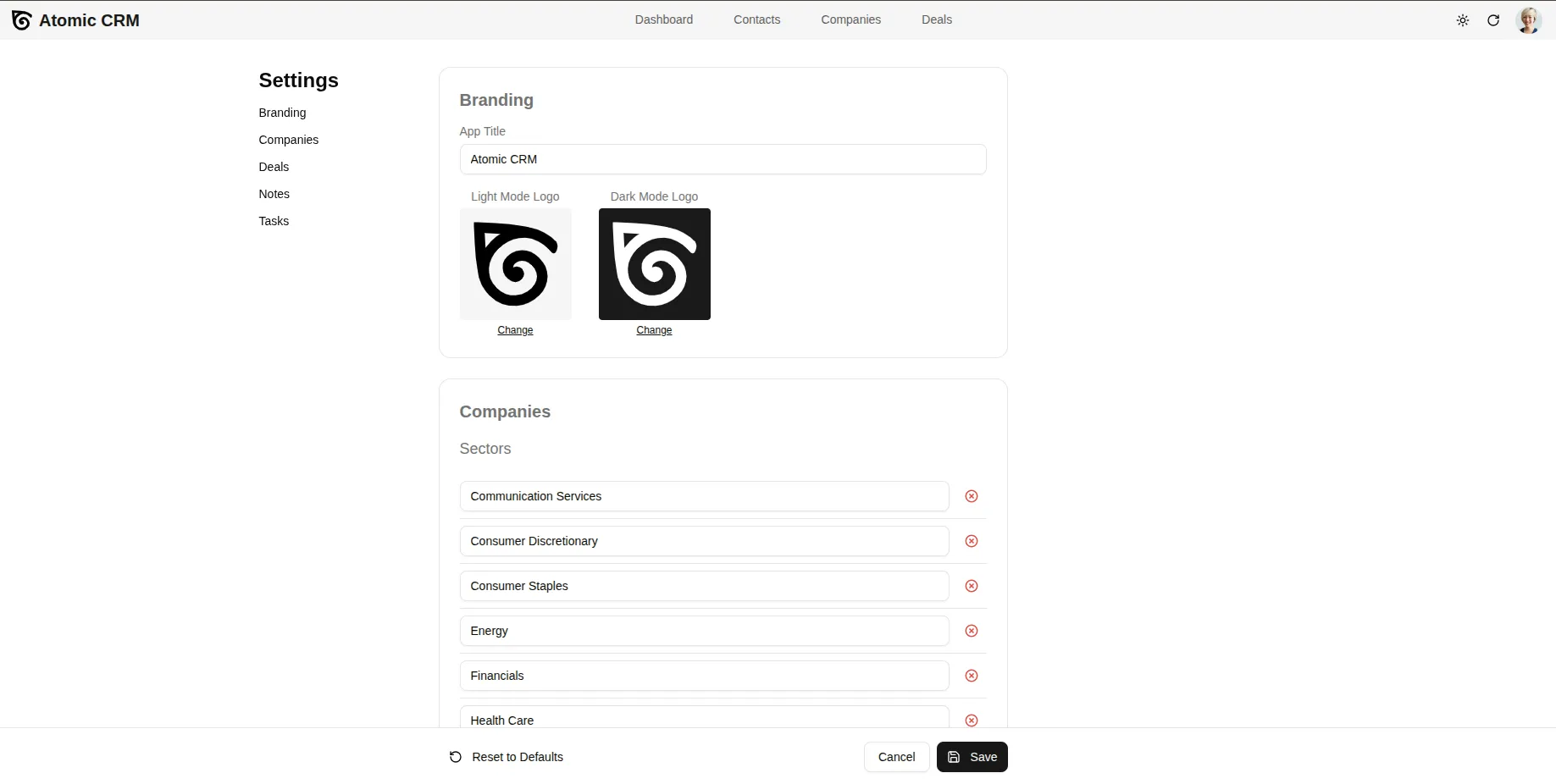
Want to configure your CRM to better match your brand and your needs. We added a settings page to allow users to configure their Atomic CRM instance more easily.
This page includes settings for
- CRM Title
- CRM Logo
- Companies sectors
- Deals stages
- Pipeline statuses
- Categories
- Notes statuses
- Tasks types
Mail Forwarding
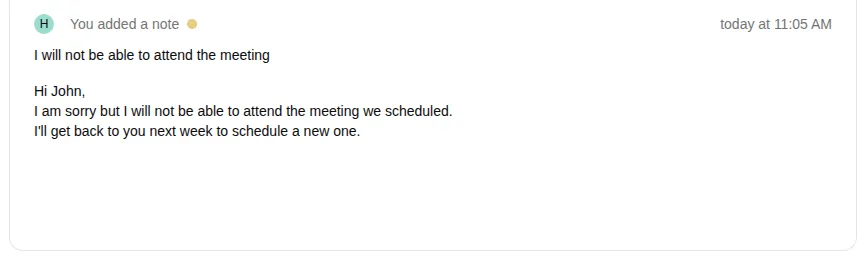
Before, you could send emails to Atomic CRM by adding your Atomic CRM email address in CCi, while replying to a contact. This would create a note in the contact’s profile with the email content. Now, You can also directly forward emails to Atomic CRM to create notes for your contacts. For when you want to add a received email as a note linked to the sender.
Migrating From Another CRM
If you already use another CRM, you probably have a lot of data that you want to keep using Atomic CRM. However, migrating data from one CRM to another can be a daunting task, especially if the two CRMs have different data models and formats.
Don’t worry, we’ve got you covered. Atomic CRM now has a data import feature that allows you to import your contacts, companies, notes, tags, and deals from a single JSON file.
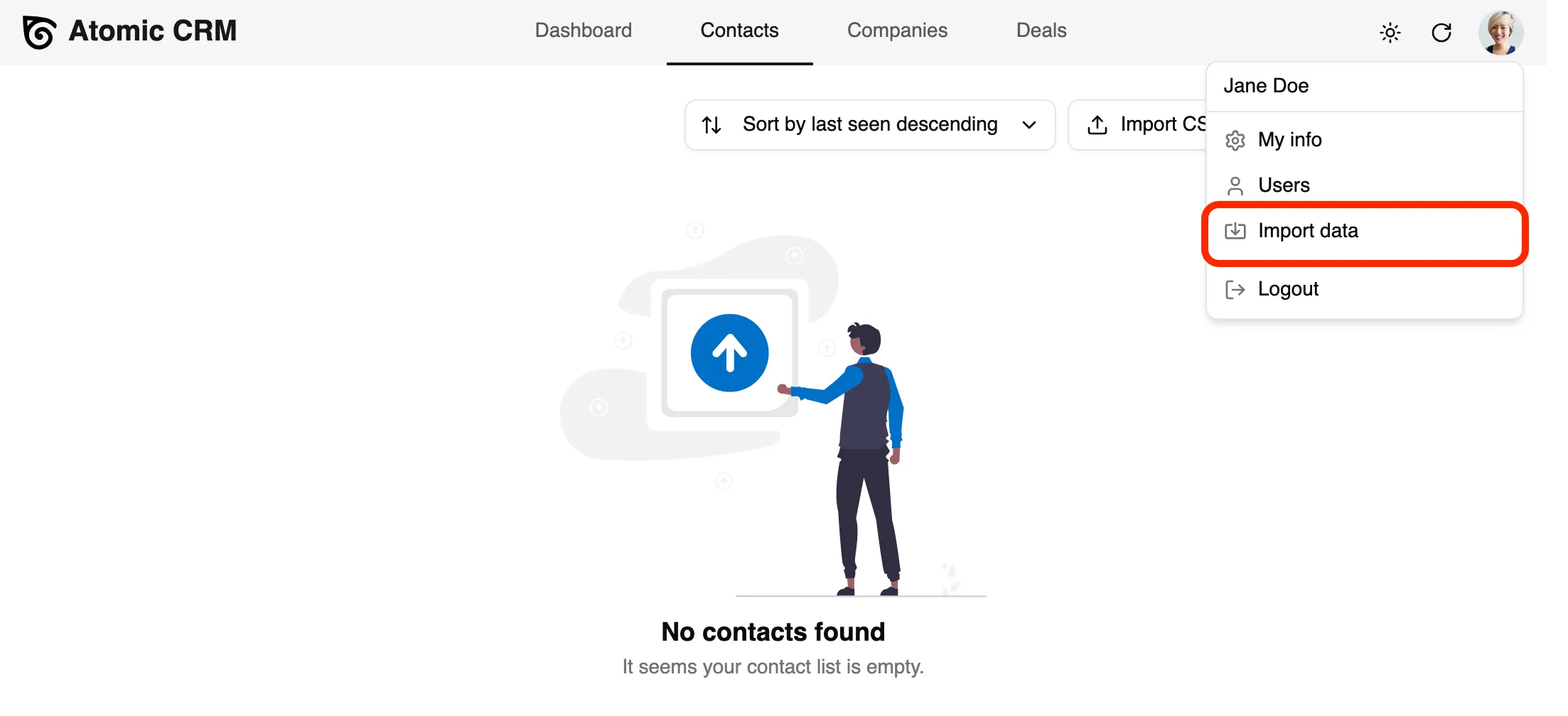
You can create this JSON file from the export of your previous CRM. The expected format of the JSON file looks like the following:
{ "sales": [ { "id": 123, "first_name": "Barney", "last_name": "Calhoun", "email": "barney.calhoun@blackmesa.com" } ], "companies": [ { "id": 234, "name": "Black Mesa Research Facility", "sector": "industrials", "size": 250, "website": "https://blackmesa.com", "linkedin_url": "https://linkedin.com/company/black-mesa", "phone_number": "+1-505-555-0001", "revenue": "$500M", "tax_identifier": "12-3456789" }, // ... ], "contacts": [ { "id": 456, "first_name": "Gordon", "last_name": "Freeman", "gender": "male", "has_newsletter": false }, // ... ], "notes": [ { "contact_id": 567, "sales_id": 123, "text": "Discussed new testing initiative involving portals.\n\nCave mentioned something about combustible lemons. Need to follow up on R&D budget.", "date": "2025-02-14T09:20:21Z", "attachments": [ { "url": "https://aperturescience.com/files/combustible-lemons-proposal.pdf", "name": "combustible-lemons-proposal.pdf" } ] }, // ... ], "tasks": [ { "contact_id": 456, "sales_id": 123, "text": "Send crowbar maintenance kit" }, // ... ]}The migration utility will take care of importing the contacts, notes, tasks, deals, attachments, and associations between entities (e.g., which notes are linked to which contacts and sales). It should make the transition to Atomic CRM as smooth as possible, without losing any of your valuable data.
See the Migrating from another CRM documentation for more details.
Notes Now Support Markdown
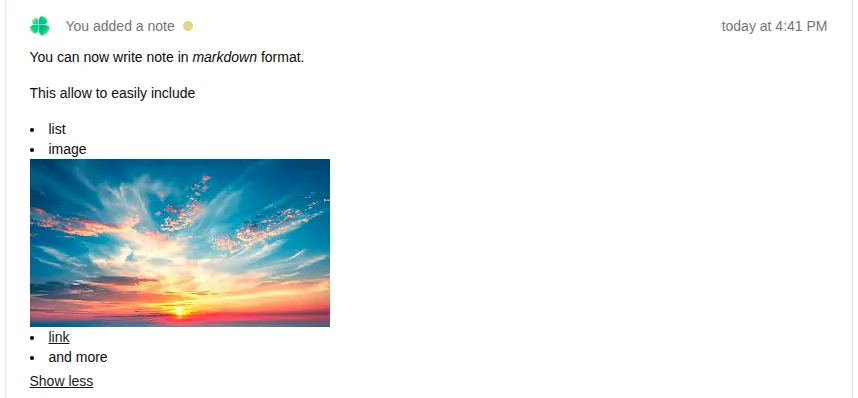
You can now add formatting (lists, bold, italics, links, images, blockquotes, etc.) to your notes using markdown syntax. This allows you to create more structured and visually appealing notes. It is especially useful for notes that are automatically created from emails, as it allows you to preserve the formatting of the original email.
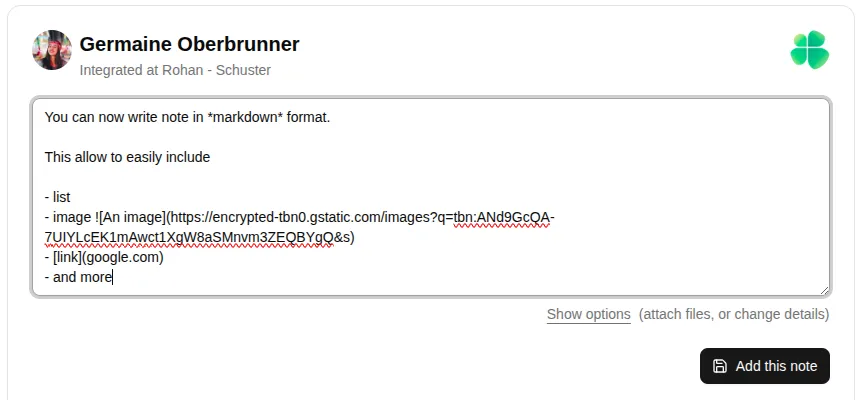
The note markdown will be rendered in the note list and in the note details.
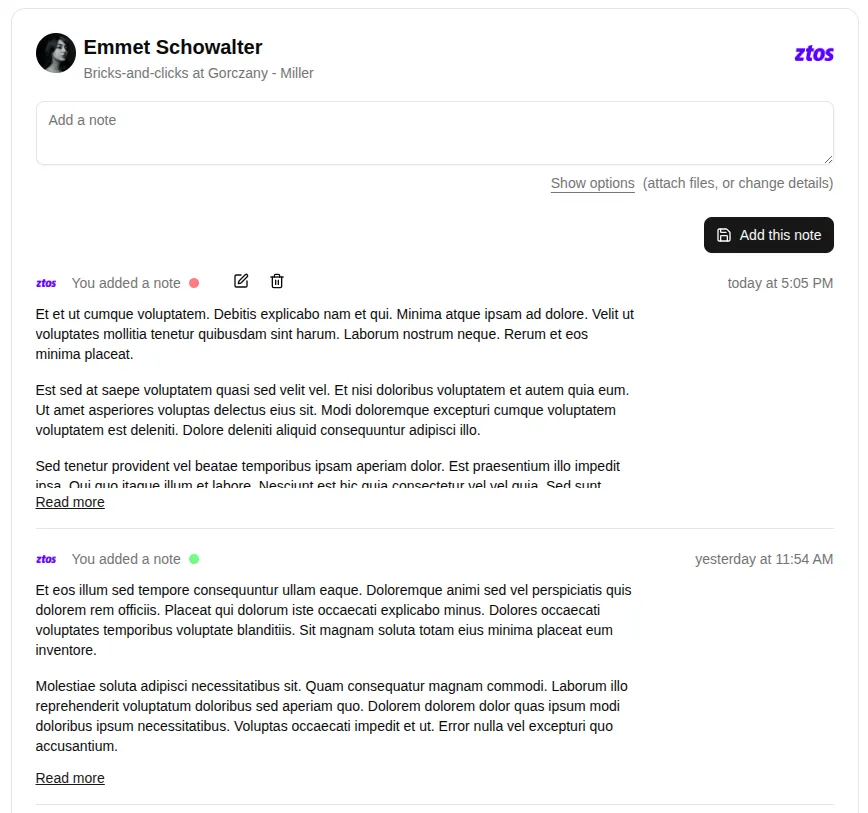
Dense Note List With Note Summary
The note list now only shows the note summary, which is the first few lines of the note. This allows you to quickly scan through your notes and find the one you are looking for.
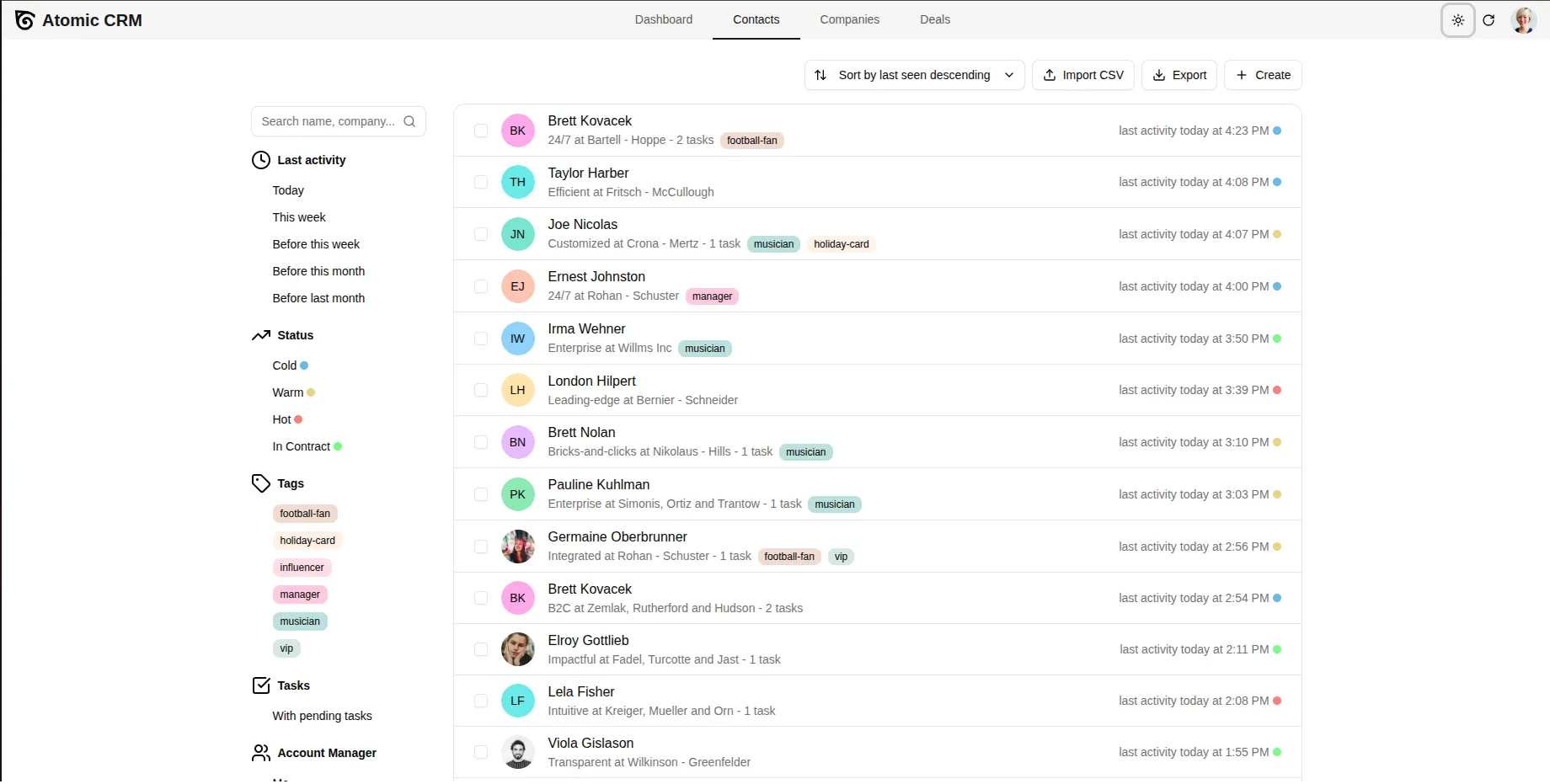
Colored Contact Avatars
Not all contacts have a photo available. In lists, these contacts are represented by an avatar with the contact’s initials. To make it easier to distinguish between contacts at a glance, these avatars now have a colored background based on the contact’s name. This way, even without a photo, you can quickly identify different contacts by their avatar color.
Select a Range of Contacts
You already had the ability to select multiple contacts using checkboxes, but now you can also select a range of contacts by selecting the first contact, then maintaining the Shift key and selecting the last contact of the desired range. This is useful when you want to select a large number of contacts at once.
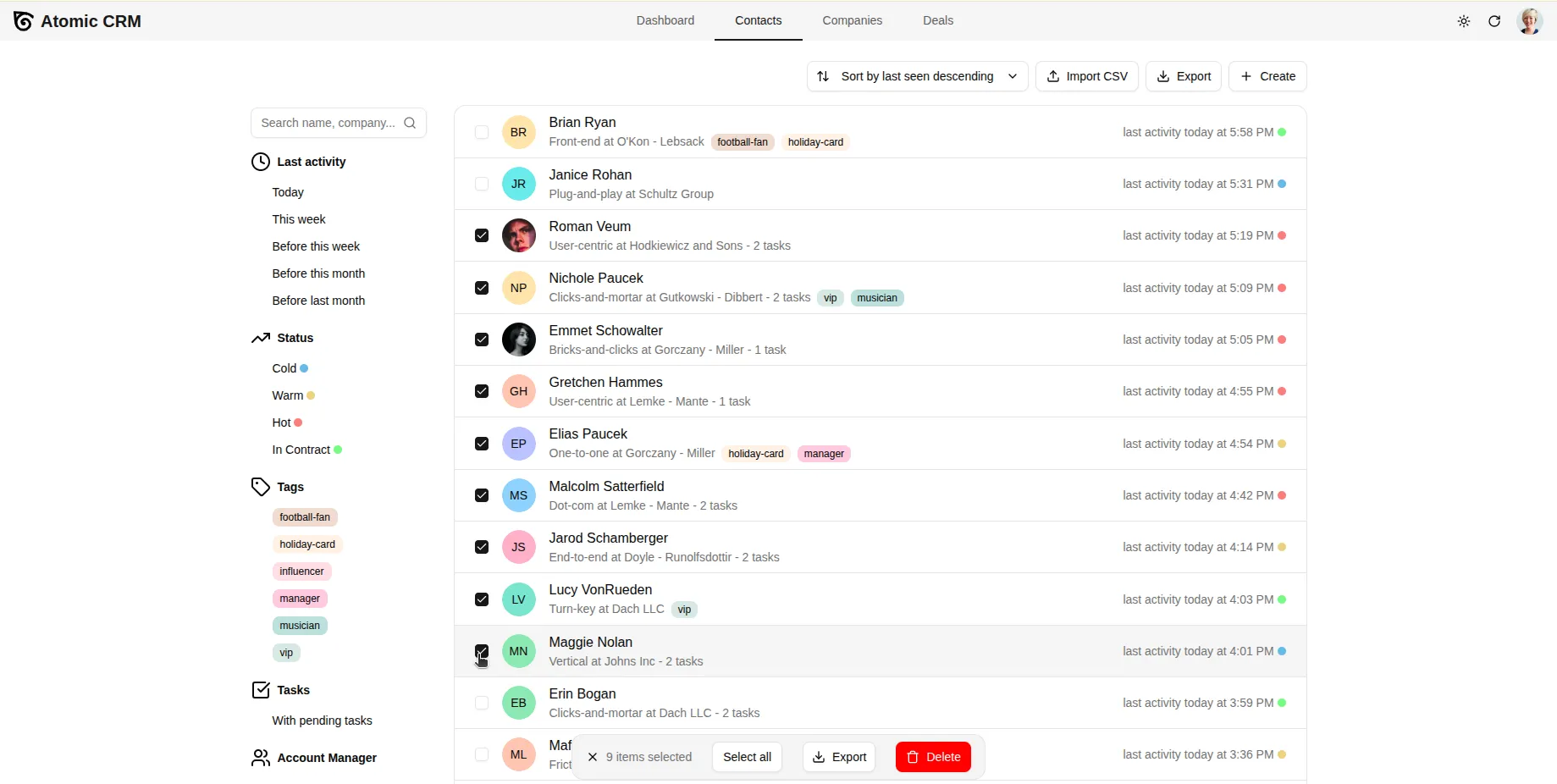
In addition, the floating selection menu now allows to select all contacts regardless of pagination, which is useful when you want to perform a bulk action on a large list of contacts, such as exporting them or deleting them.
Improved Agent Experience
Atomic CRM is a developer-centric CRM, so we do our best to offer a top notch developer experience. But these days, developers use agents, so we improved the agent experience, too, in order to make it easier for agents to add features, fix bugs, and contribute to the project.
This includes:
- An AGENTS.md to help agents understand the codebase.
- Skill files.
- Agent configuration to run the frontend on a mock API to test changes
- The documentation served in markdown to save tokens:
curl https://marmelab.com/atomic-crm/doc/developers/atomic-crm-api/ -H "Accept: text/markdown"OAuth Identity Provider
You can now use Atomic CRM as an identity provider for OAuth authentication. This allows you to use your Atomic CRM credentials to log in to other applications that support OAuth authentication, such as third-party analytics tools, marketing platforms, or custom internal applications.
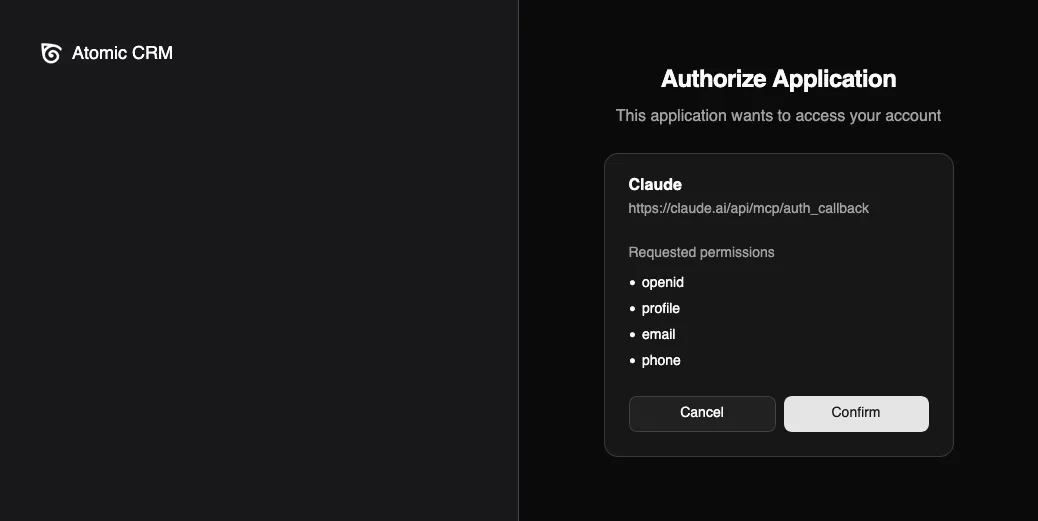
This capability is use in the Atomic CRM MCP server described above, which uses OAuth authentication to allow AI assistants to access your CRM data securely.
Improved Documentation
We’ve added tons of new documentation to help you get the most out of Atomic CRM, whether you’re a user, an administrator, or a developer. This includes:
- What’s new in Atomic CRM
- Customization and setup instructions
- Mobile App usage
- Import/export instructions
- MCP server usage and setup
- REST API instructions and reference
- SSO setup
- and much more…
The documentation also contains a full-text search engine to help you find the information you need quickly, a better user interface, and more screenshots and examples to make it easier to understand how to use Atomic CRM and its features.
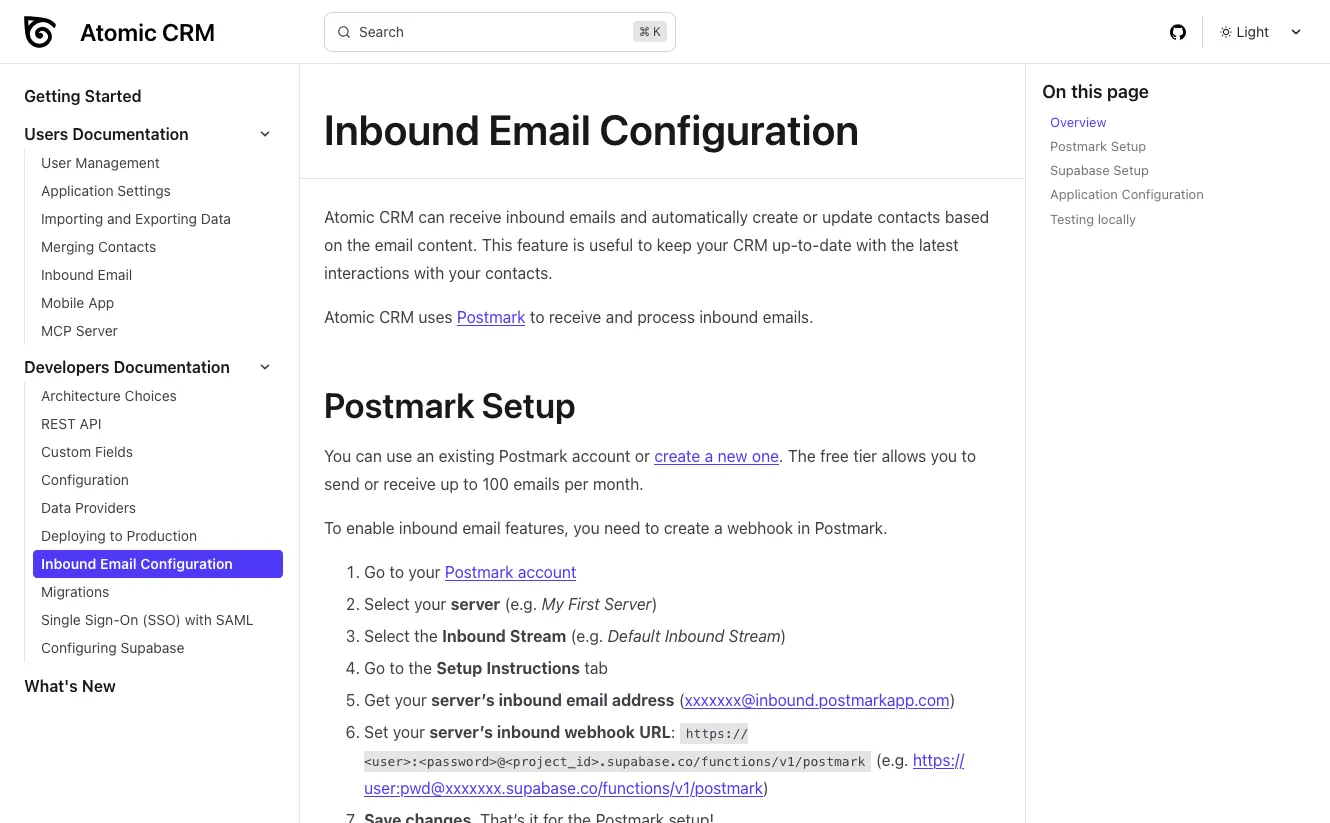
See the Atomic CRM documentation for more details.
Easier Updates
Atomic CRM components are now published as a Shadcn UI registry. This allows you to easily update your Atomic CRM instance with the latest features and bug fixes by simply running a single command:
npx shadcn add https://marmelab.com/atomic-crm/r/atomic-crm.json -oSee the Readme for more details.
Conclusion
The Atomic CRM 1.5 changelog on GitHub lists all the new features, improvements, and bug fixes included in this release.
Because Atomic CRM is our company CRM, we use it every day and we keep on improving it. The community is also growing and contributing to the project, which is amazing. We are very excited about the future of Atomic CRM and we can’t wait to share more updates with you in the coming months. Stay tuned!
Authors
Full-stack web developer at marmelab, loves functional programming and JavaScript.
Marmelab founder and CEO, passionate about web technologies, agile, sustainability, leadership, and open-source. Lead developer of react-admin, founder of GreenFrame.io, and regular speaker at tech conferences.