Atomic CRM 2.0: Find Anything, Anywhere

Atomic CRM 2.0 is out!
This release focuses on a simple question sales people ask a dozen times a day: “where did I write that?” Atomic CRM now has a global search that looks through every contact, company, deal, task and note at once. It also remembers the contacts you just looked at, lets you create a contact without leaving a deal, and runs on a new UI foundation.
The major version number comes from two breaking changes for developers who maintain a fork. End users get new features and nothing to relearn.
Read on to discover all the improvements and new features of Atomic CRM 2.0.
In a Nutshell
- Search Everything From One Place
- Talk To Your CRM (You Already Could)
- Get Back To The Contacts You Just Viewed
- More Flexible Deals
- Better Tag Management
- Mobile Improvements
- Company Logos Without A Third Party
- Security Fixes
- One Build, Every Environment
- Base UI Instead Of Radix UI
- Upgrading From 1.x
Search Everything From One Place
Until now, the only way to find a past note was to know which contact it was attached to. If you only remembered a word (“pricing”, “renewal”, the name of a competitor), you had to open contacts one by one until you found it.
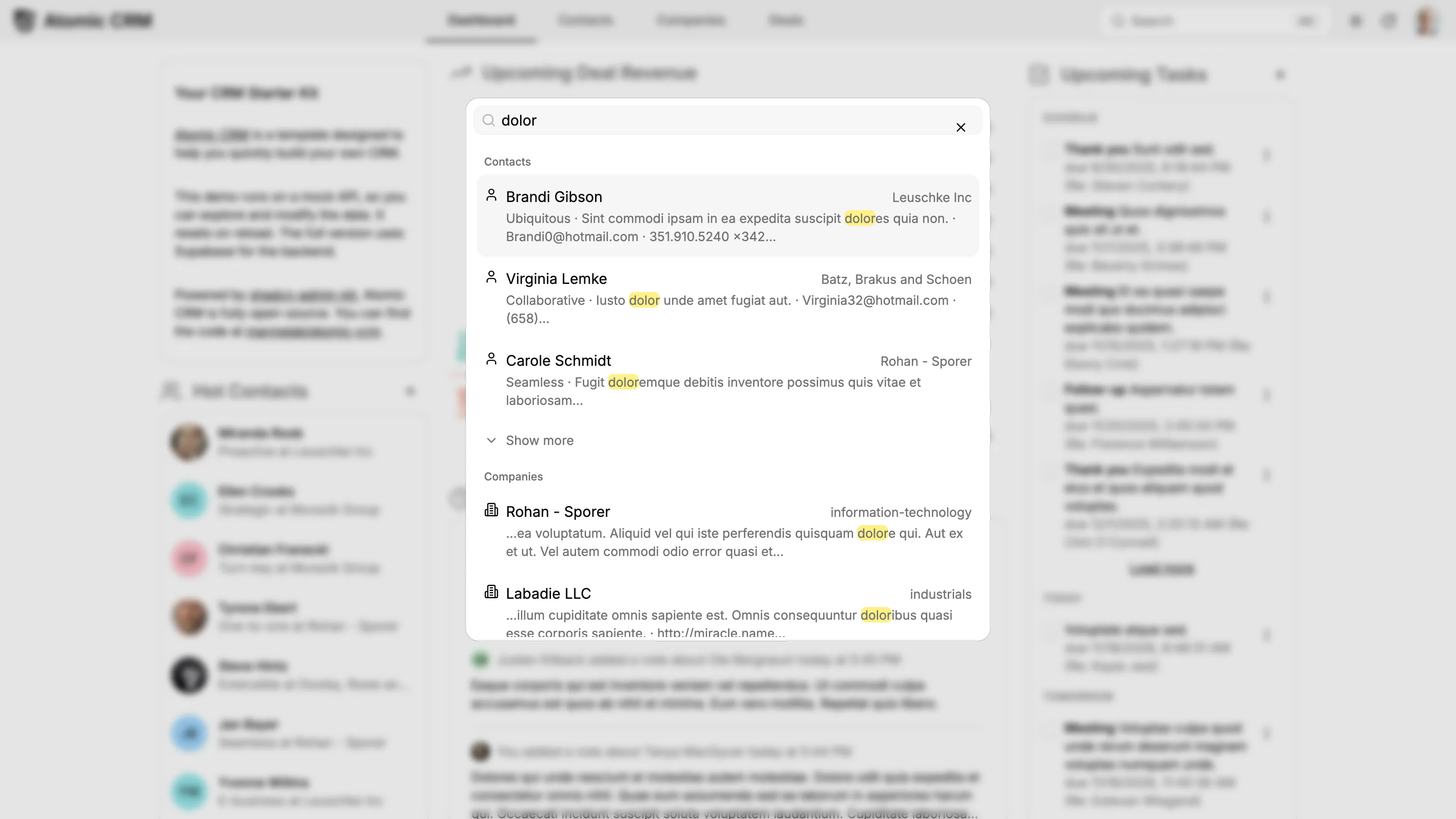
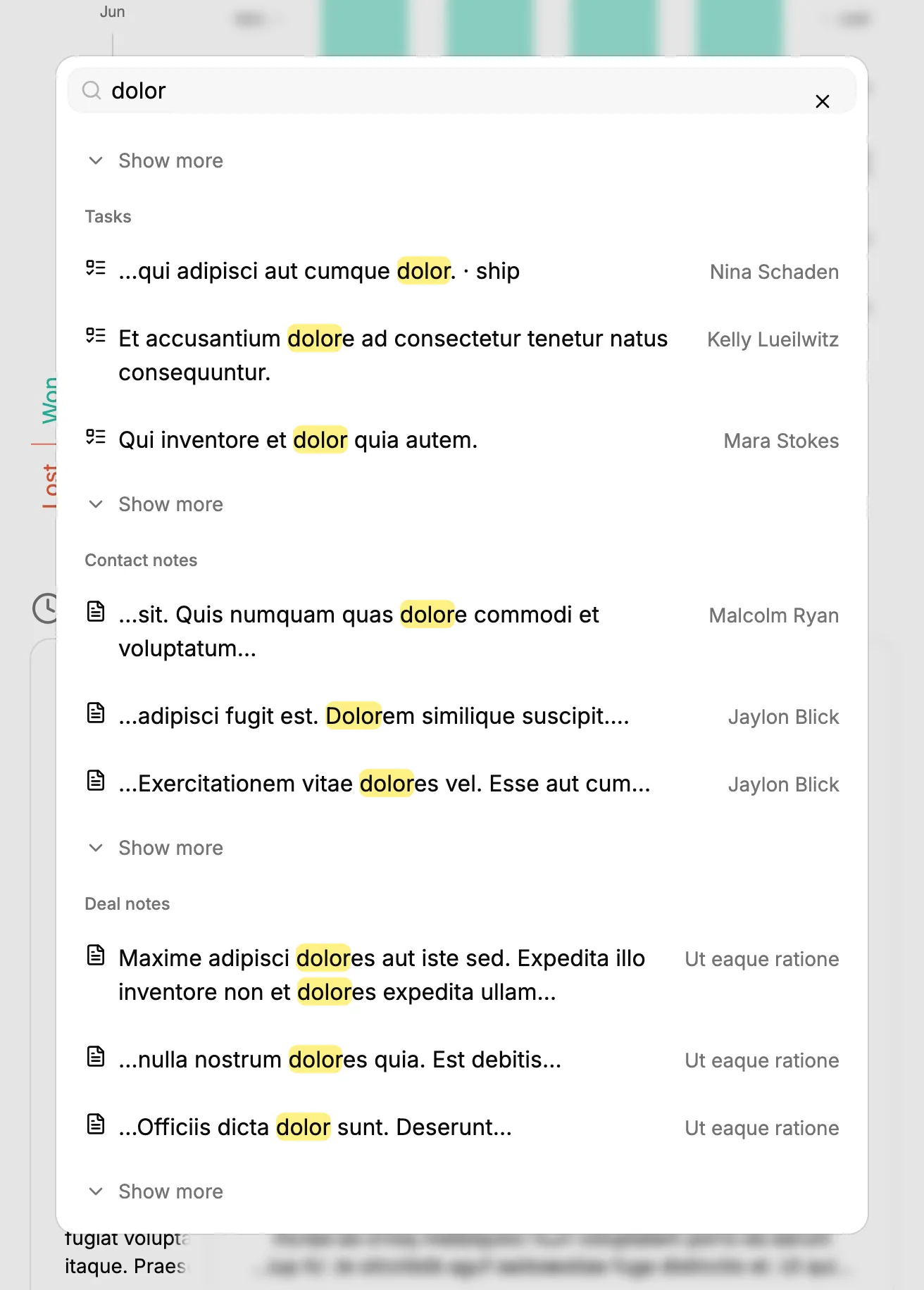
Atomic CRM 2.0 adds a global search. Open it from the search button in the app bar, or with Ctrl+K (⌘+K on macOS), and start typing. Results show up as you type, grouped by type: contacts, companies, deals, tasks, contact notes and deal notes.
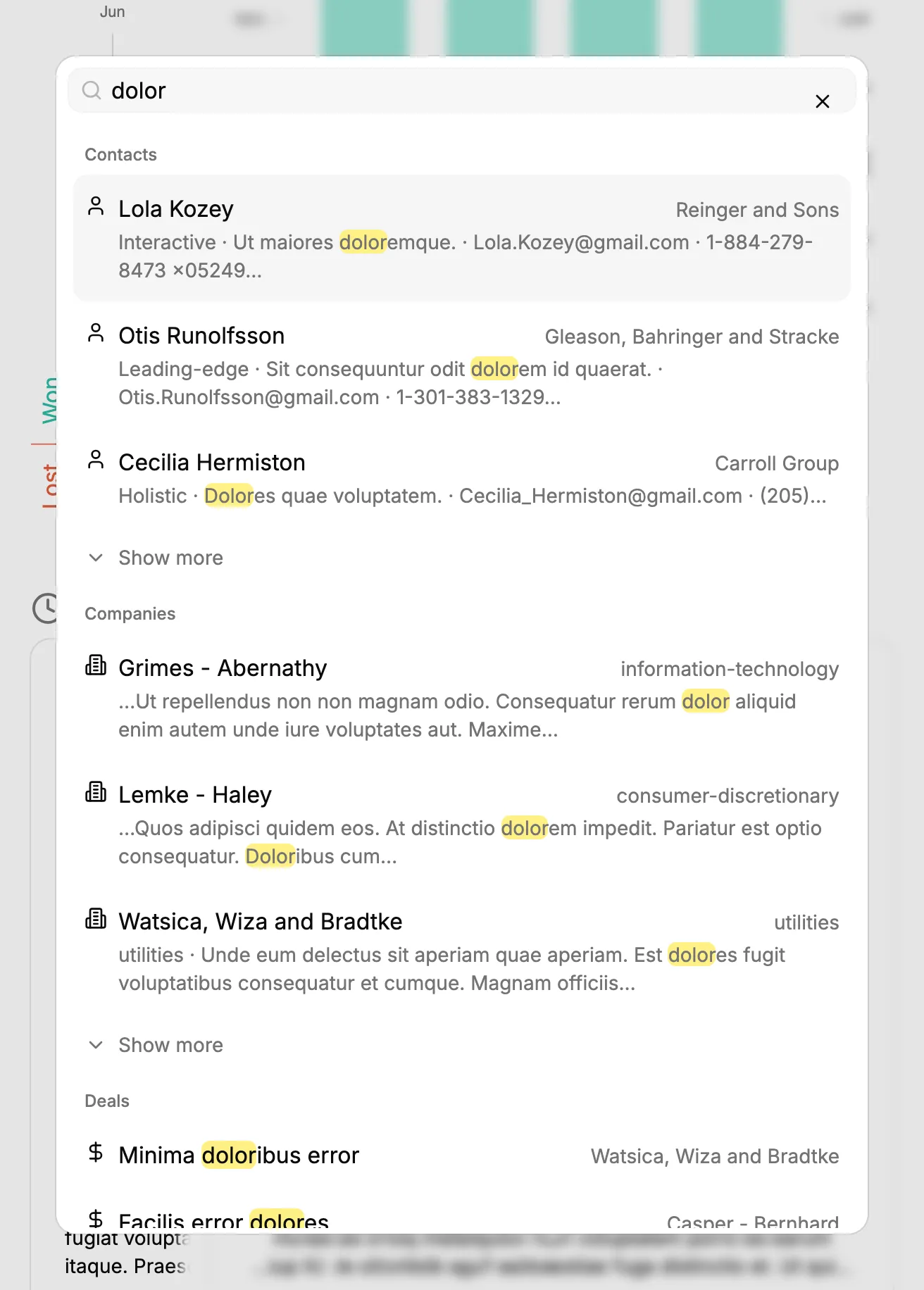
Matched words are highlighted. When the match isn’t in the record’s name, an excerpt around it is displayed, so you can tell which note is the right one before opening it. Each group shows the first three results, and a “Show more” link reveals the others.
The search is forgiving: every word you type matches as a prefix, and accents are ignored. tho and finds Thomas Anderson, and helene finds Hélène.
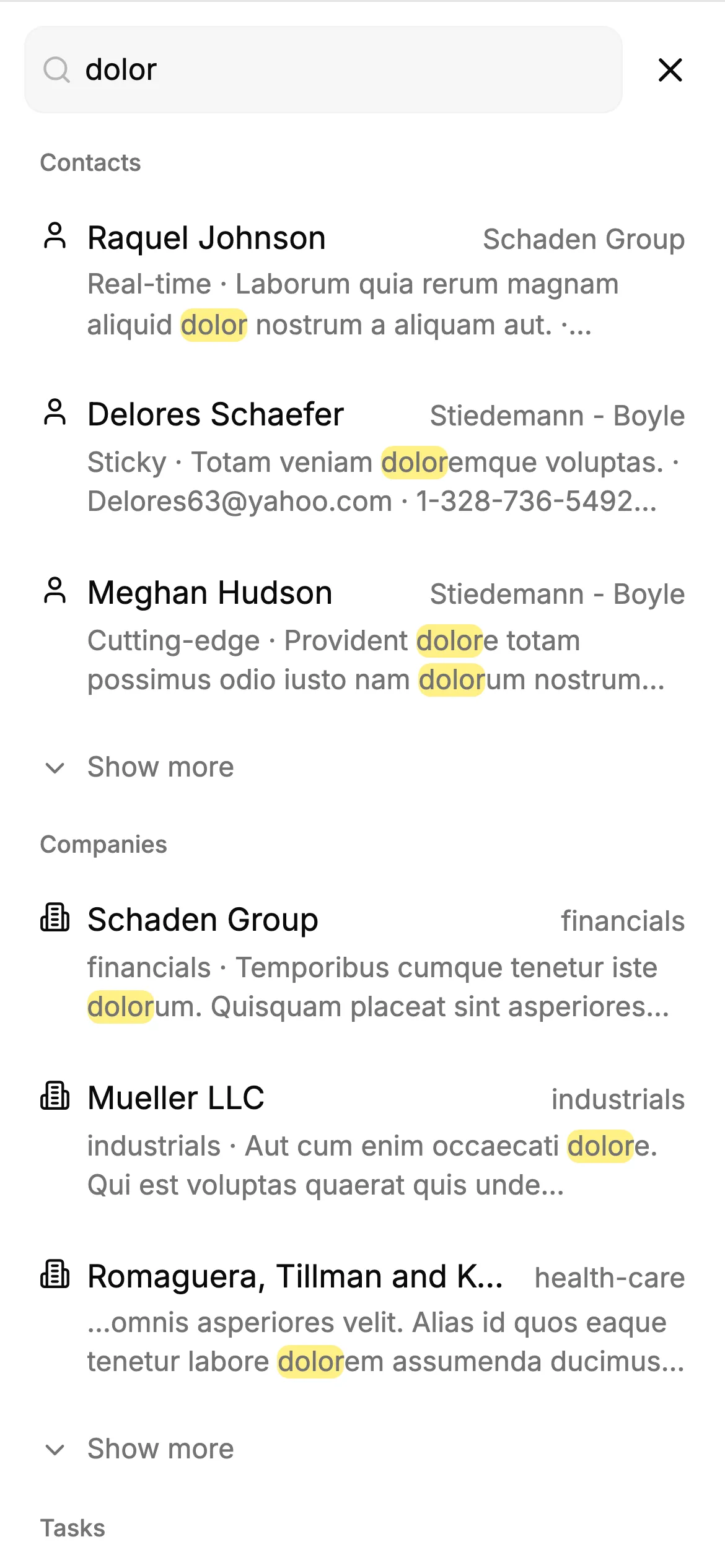
On mobile, the search icon is in every header, and the dialog takes the whole screen. Tapping a contact opens its details, and tapping a task opens the contact’s task list.
Under the hood, the search relies on PostgreSQL full-text search, with a dedicated index on each searchable table. It stays fast on large databases, and it respects your access rules: you only find the records your account is allowed to see.
See the Global Search documentation for more details.
Talk To Your CRM (You Already Could)
These days, every CRM vendor announces its brand new MCP server, so that AI assistants like Claude or ChatGPT can read and update your sales data. Atomic CRM has had one since January 2026, and it’s been part of the app itself since version 1.6. If you deploy Atomic CRM, you already have an MCP server, with nothing to install and no extra subscription.
Connect your assistant once, and work with your CRM in plain language, from the tool you already have open:
- Ask anything: find contacts, review a pipeline, or summarize an account history in seconds, without building a report. “Which deals in the negotiation stage haven’t moved in a month?”
- Update by conversation: log a note, create a task, or move a deal to the next stage just by asking. “Add a note to Jane’s contact saying she wants a quote by Friday, and remind me to send it on Thursday.”
- Combine it with your other tools: plugged alongside the MCP servers of Gmail, Google Calendar or Notion, the assistant can work across all of them. “Draft a follow-up email to everyone I met at the conference last week, using our previous interactions.”
When the answer is a list of tasks, the assistant doesn’t just describe it: thanks to MCP Apps, it displays an actual task list inside the conversation, where you can tick tasks off.
Your data stays yours. The MCP server runs on your own Supabase instance, authenticates through OAuth, and each assistant acts as you: it only sees the records your account is allowed to see. This release makes it even safer (see Security Fixes below).
See the MCP Server documentation to connect ChatGPT, Claude, Visual Studio Code, or any MCP-compatible assistant.
Get Back To The Contacts You Just Viewed
Here is a typical day for a sales person on the road: open a contact before a meeting to refresh their memory, have the meeting, then go back to the CRM to write a note. At that point, they have to search for the contact again.
The global search now shows your recently viewed contacts as soon as you open it, before you type anything: the last five contacts you opened in the past 24 hours, latest first. Writing the post-meeting note is now two taps away.
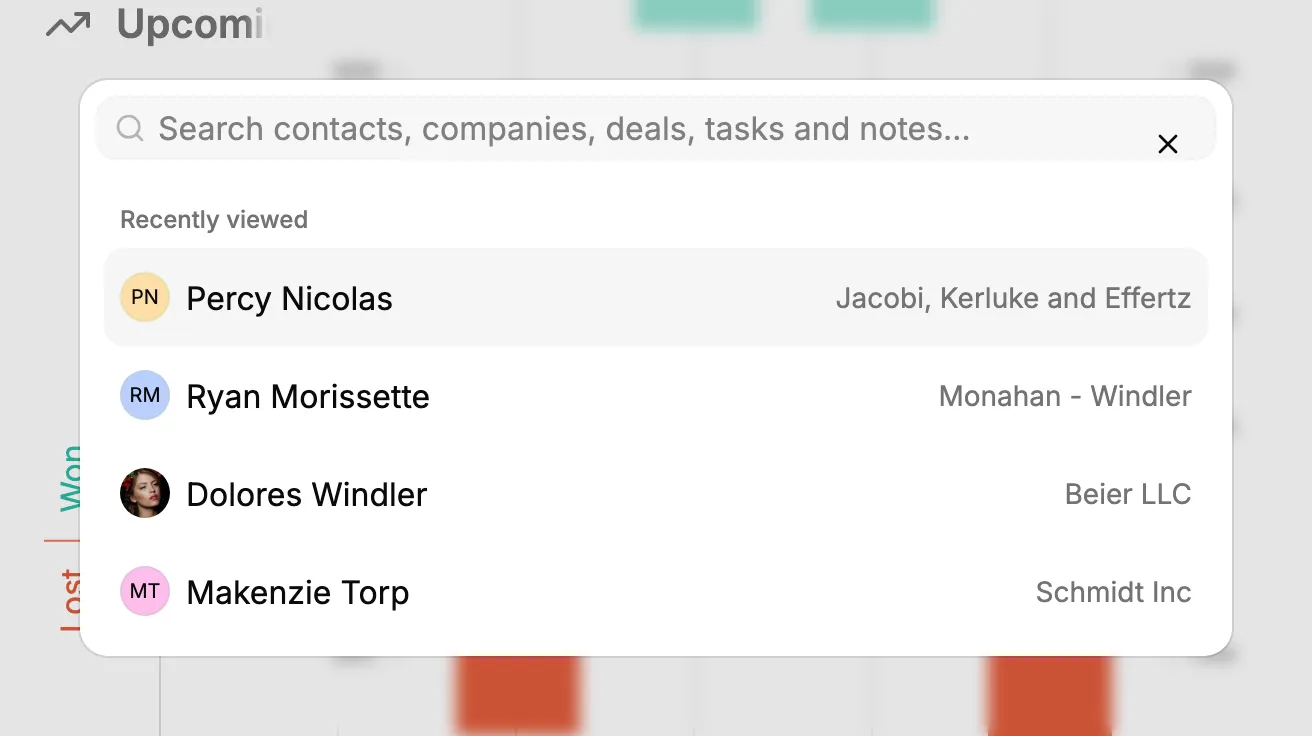
We first added this list to the dashboard, but it took space there even when you didn’t need it. The search dialog is where you go when you look for a contact anyway, so that’s where the list lives now, on desktop and on mobile.

This list is stored on your device only and never sent to the server.
More Flexible Deals
When creating a deal, you could already create its company on the fly. But if one of the people involved wasn’t in the CRM yet, you had to abandon the form, create the contact, and start the deal over.
Now, type a name in the Contacts field of the deal form, and a “Create” option appears when there is no match.
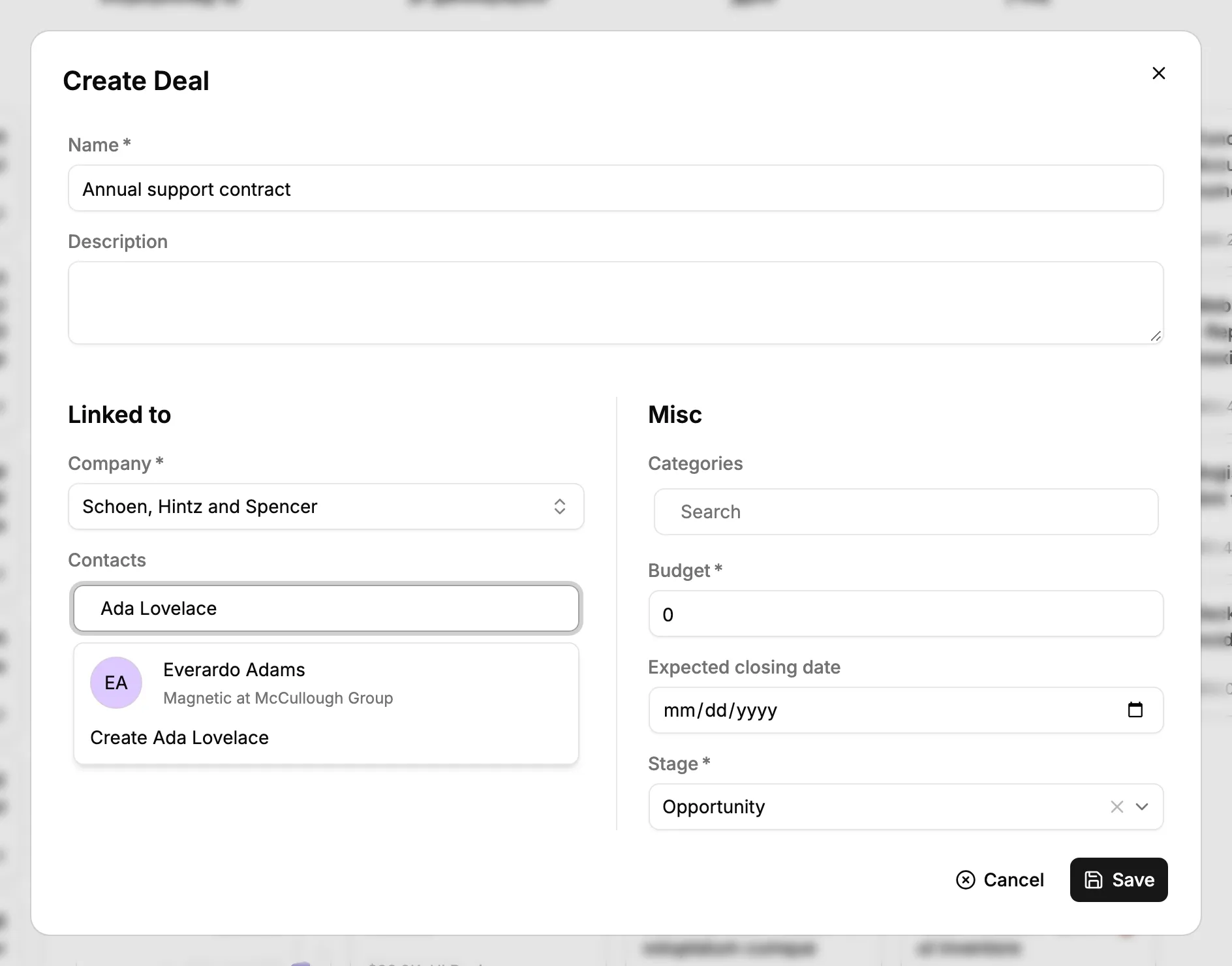
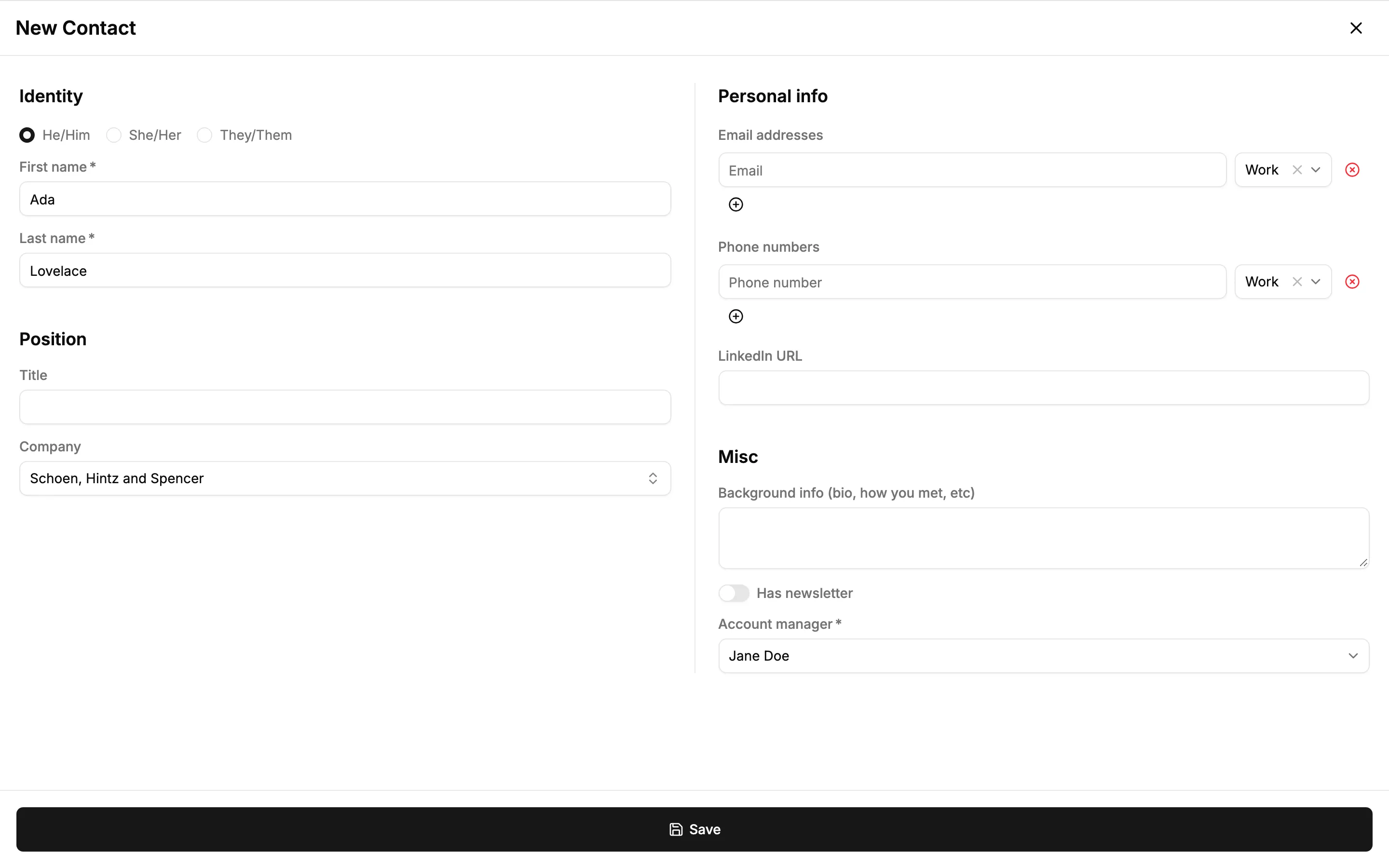
It opens the contact form, prefilled with the name you typed and the company of the deal. Save it, and you’re back on your deal, with the new contact already selected.
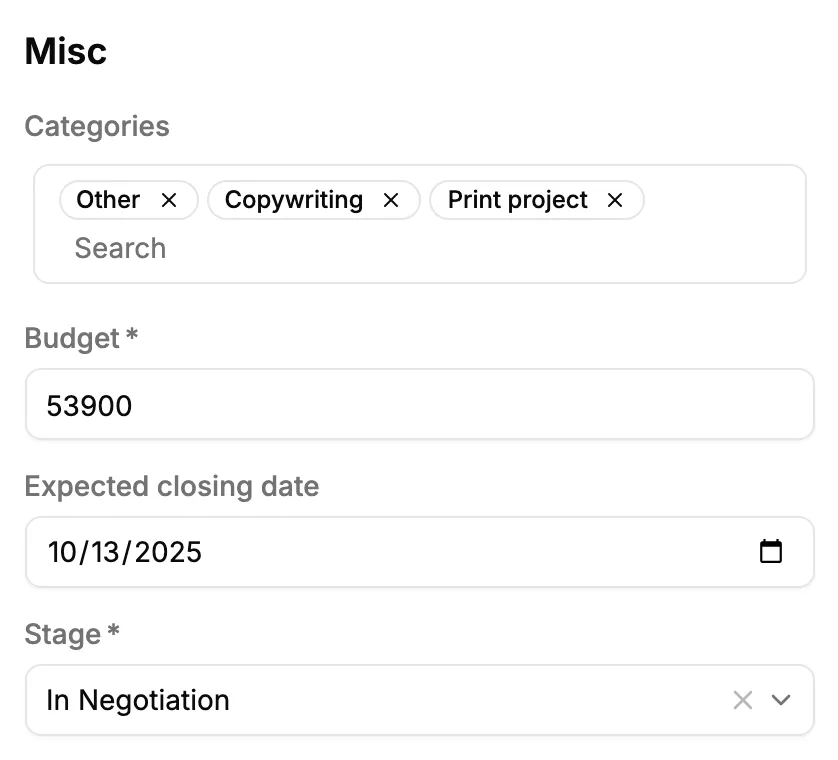
Deals also used to accept only one category. But a single deal often covers more than one thing: a project that includes both consulting and training, or a contract that mixes a license and support. You had to pick the “main” category and lose the rest. A deal can now belong to several categories. They all show on the deal card and the deal page, and the CSV import accepts several categories per deal too.
Better Tag Management
Tags tend to proliferate: a typo here, a one-off event tag there. Until now, once a tag was created, it stayed in the CRM forever.
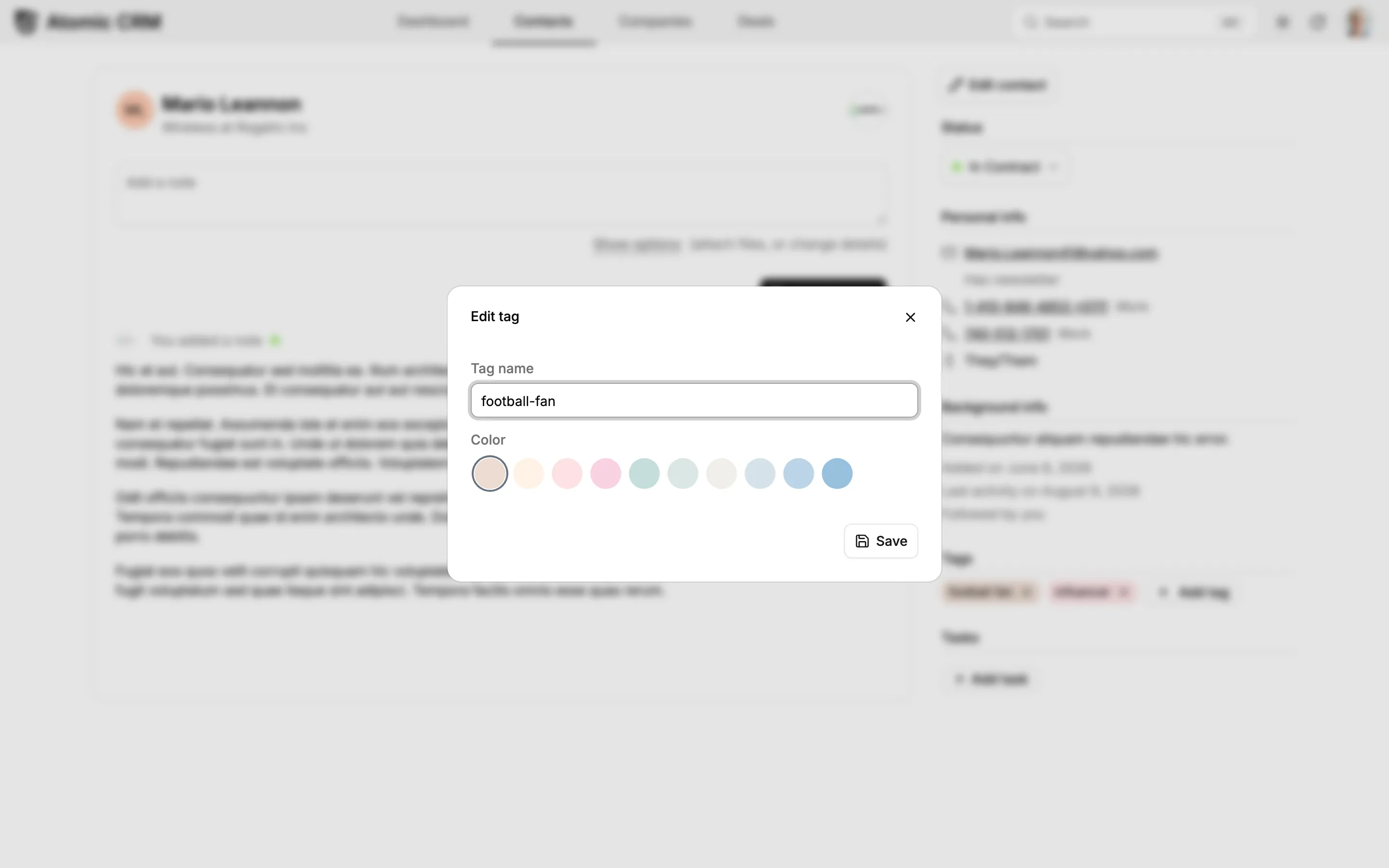
You can now edit a tag to fix its name or change its color, right from a tag chip on a contact page. The change shows up immediately on every contact that has it.
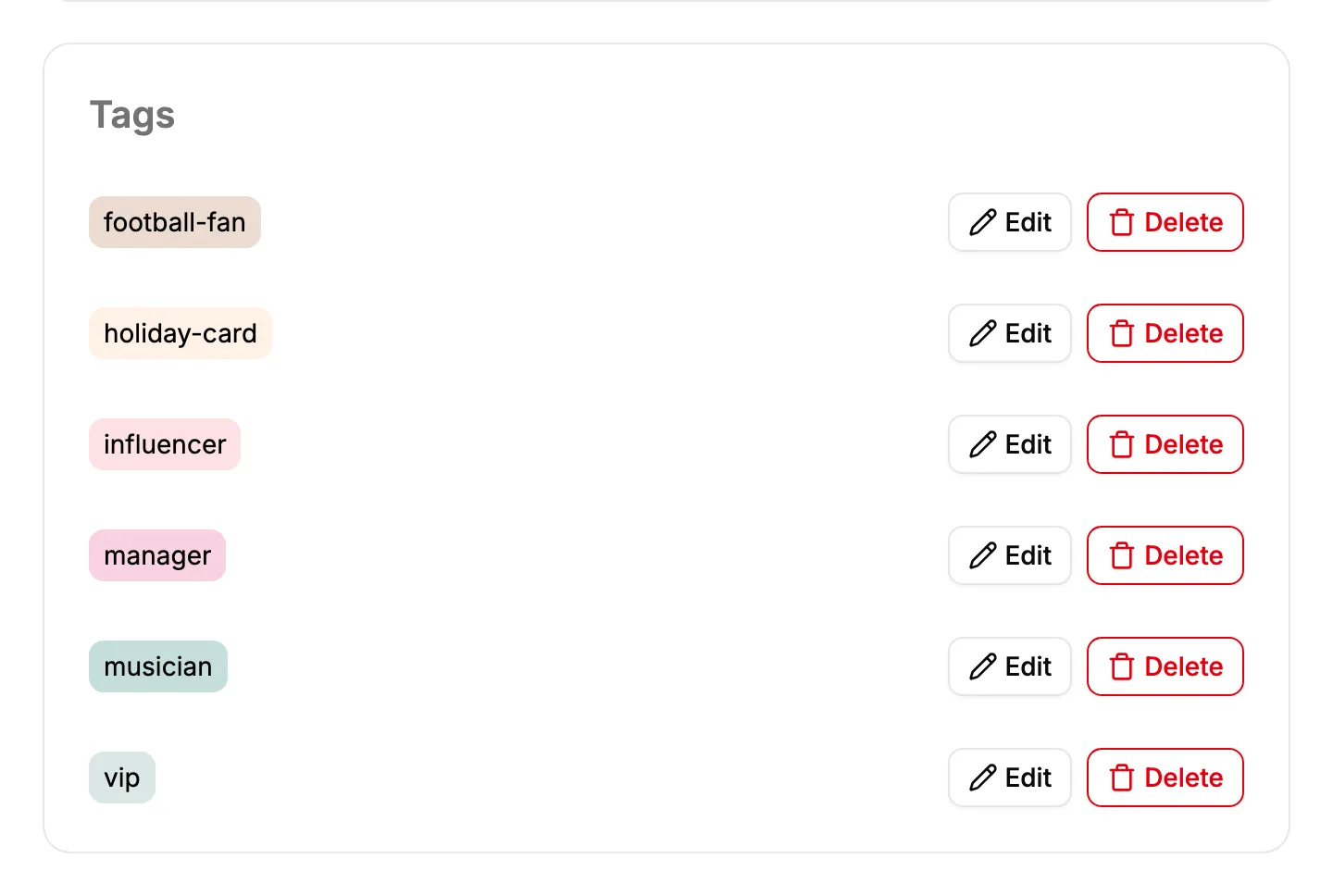
The Settings page also gets a new Tags section, listing all your tags with an Edit and a Delete button. Deleting a tag removes it from all its contacts, and if you clicked too fast, the “Undo” button of the notification brings it back.
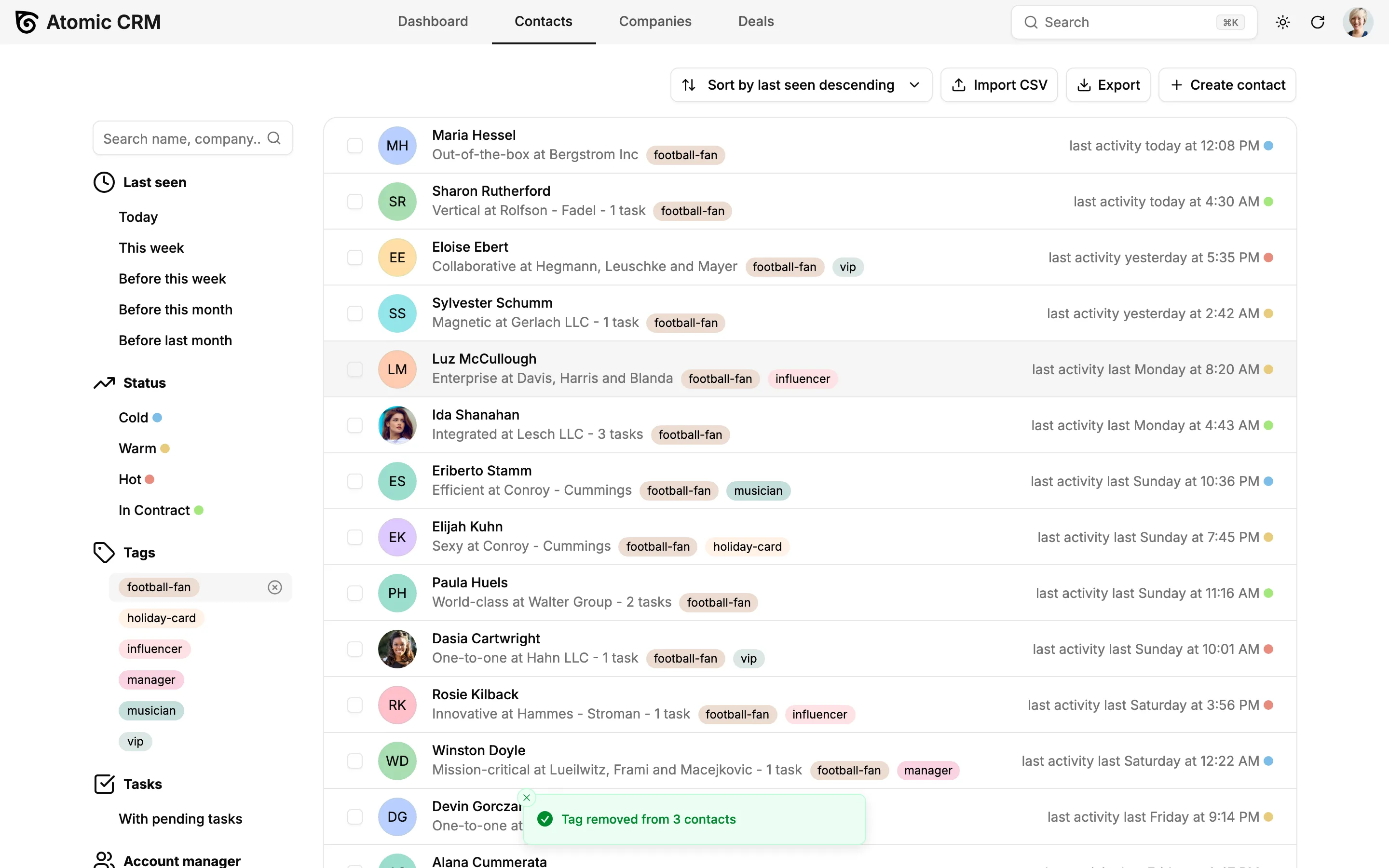
Finally, in 1.6, we added the ability to tag several contacts at once. But the reverse operation was missing: when a campaign was over, removing its tag meant editing each contact.
The bulk Tag action now works both ways. Select contacts and pick a tag: if some of them don’t have it, it is added. If all of them already have it, it is removed, and a notification tells you how many contacts were updated.
Mobile Improvements
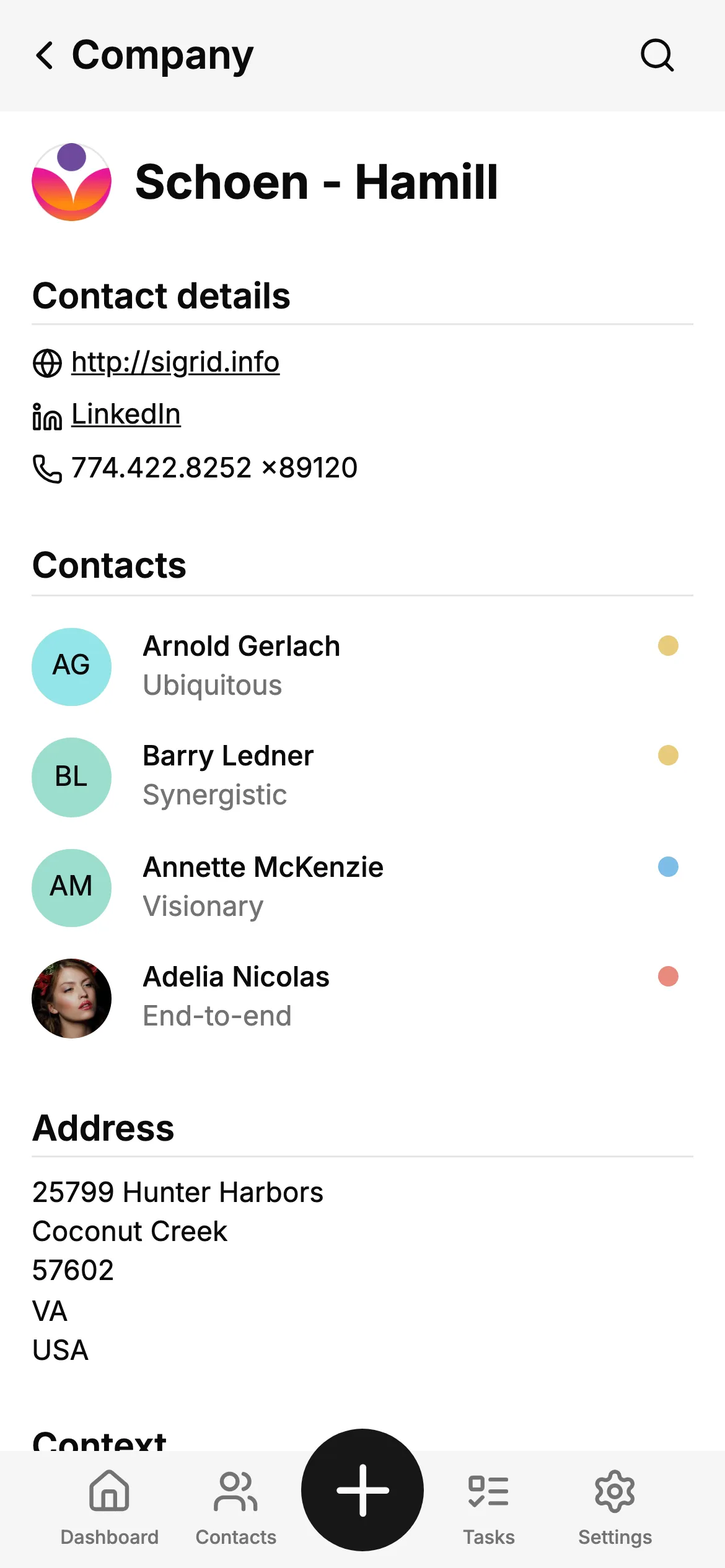
On mobile, the company page displayed the company details, but not the people who work there. To call a colleague of your contact, you had to go back to the contact list and search.
The mobile company page now lists its contacts, with their avatar, title and status. One tap opens the contact page.
The mobile app also got quieter. Following the mobile UX guidelines, it no longer shows a success notification after each save: you can already see the result on screen. Notifications remain for errors and deletions.
And since the mobile app gained pull to refresh in 1.6, the refresh buttons are gone too. More room for your data.
Company Logos Without A Third Party
When a company has no logo, Atomic CRM uses the favicon of its website. That logo used to be served by a third-party service, so each time a user displayed a list of companies, their browser told that service which customers and prospects your team was looking at, and when. That’s usage data about your sales activity, leaking out of your CRM.
Atomic CRM now fetches the favicon directly from the company’s website when the company is saved, and only falls back to the third-party service when there is none. Logos also load more reliably.
This is a core principle of Atomic CRM: it’s self-hosted, your data stays in your own Supabase instance, the app contains no tracking scripts, and we remove every external call that isn’t necessary.
Security Fixes
Like many open-source projects, Atomic CRM benefits a lot from the arrival of AI in security work. Coding agents and AI-powered audit tools review the code tirelessly, spot vulnerabilities that slipped through human reviews, and help write the patches. What used to require a costly security audit now happens continuously, as part of our daily development.
The result: Atomic CRM is much safer than it was a few months ago. This release fixes several issues found that way:
- Non-administrators can no longer open the user creation page.
- The MCP server validates the SQL generated by AI assistants more strictly before running it.
- Logging out of the browser no longer revokes the sessions of the AI assistants connected through the MCP server.
- The
initcommand now logs out of Supabase once it’s done, so it doesn’t leave a session open on the developer’s machine. - The database grants no longer include default privileges.
If you run Atomic CRM in production, apply the new migrations of this release:
make supabase-migrate-databaseNot ready to upgrade to 2.0 yet? We backported the fixes for the critical vulnerabilities to the 1.x branch. Upgrade to Atomic CRM 1.6.2 to get them without any breaking change.
One Build, Every Environment
Atomic CRM used to inline its deployment settings (Supabase URL and key, inbound email address…) into the JavaScript bundle at build time. If you had a staging and a production environment, you had to build the app twice, and changing a setting meant rebuilding.
The application build is now environment-agnostic. Settings are read at runtime from a small config.js file, generated from the same environment variables as before:
make build # builds the app oncenode --env-file=.env.production scripts/renderRuntimeConfig.ts dist/config.jsYou can promote the exact bundle you tested in staging to production, and change a setting by editing one file. Your existing .env files keep working unchanged, and the PWA still starts offline with the cached configuration.
See the Runtime Configuration documentation for more details.
Base UI Instead Of Radix UI
Atomic CRM is built with Shadcn Admin Kit, which just released its version 2. The main change is under the hood: Shadcn Admin Kit now relies on Base UI instead of Radix UI for its primitives (dialogs, selects, popovers, etc.).
Atomic CRM follows, so that it stays aligned with the shadcn/ui ecosystem, and the components you add to your CRM with the shadcn CLI keep working out of the box.
Rest assured: your users won’t have to relearn anything. Same look, same layout, same menus:
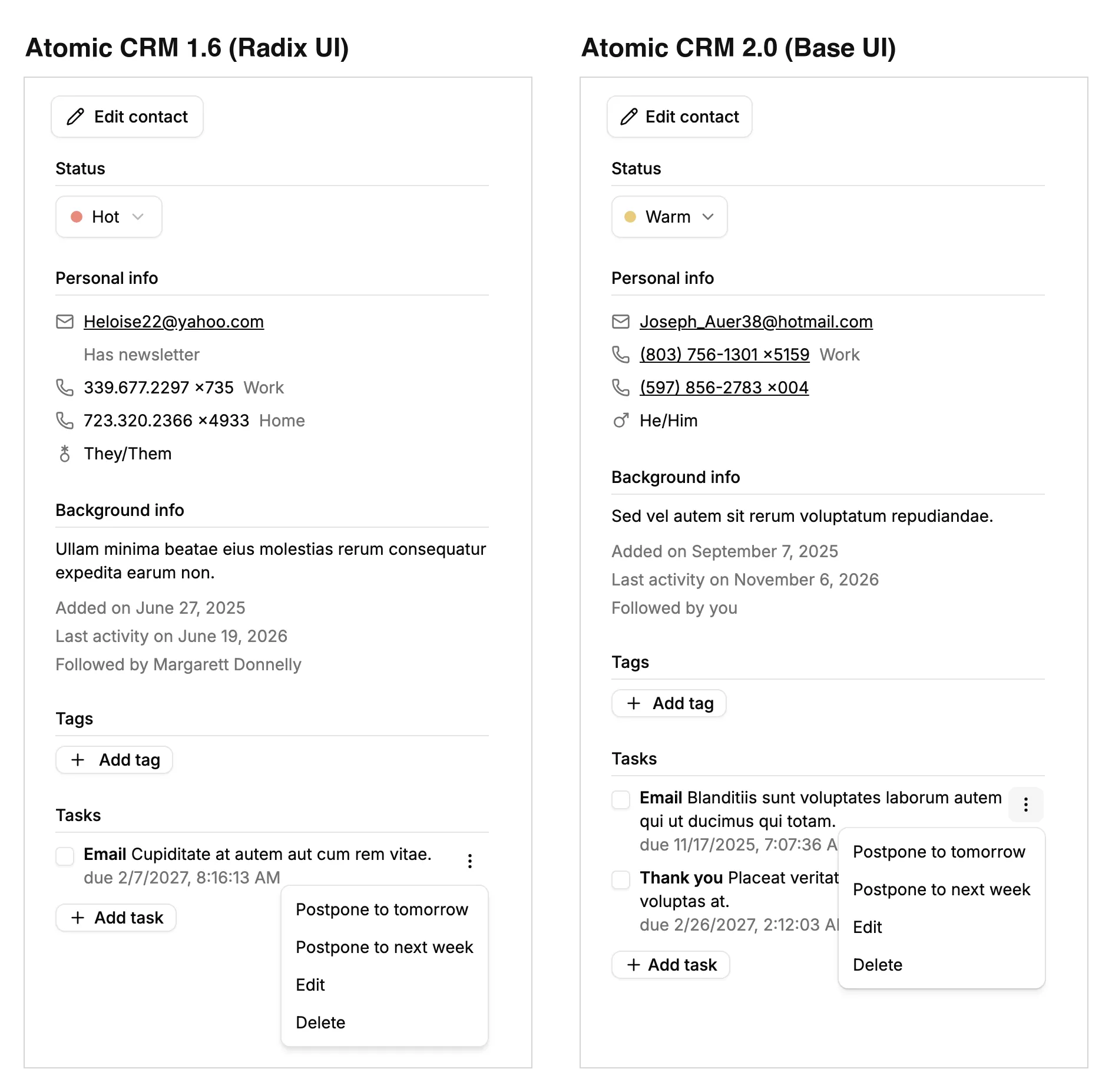
Only developers will notice the change, through a slightly different API in the UI components (render instead of asChild, for instance). If you maintain a fork, switch your components.json to the base-vega style before pulling the release. Your own components can keep using Radix UI until you migrate them, one at a time, with the help of the shadcn agent skill. The Upgrade Guide details these steps.
Upgrading From 1.x
If you deployed Atomic CRM without modifying it, pull the new version, apply the migrations, and you’re done.
If you maintain a fork, the two changes above require a few manual steps before pulling the release: switching your components.json to the base-vega style, and adding the runtime configuration files to your build. The Upgrade Guide lists them in detail.
Conclusion
This release also includes a long tail of bug fixes and dependency updates we haven’t detailed here. The Atomic CRM 2.0 changelog on GitHub lists all of them.
A special thanks to the two new contributors of this release, @porkedchop and @alexechoi, and to everyone who reported bugs and suggested features.
Because Atomic CRM is our company CRM, we use it every day and we keep on improving it. Try the online demo, check out the source code on GitHub, and tell us what you’d like to see in the next release!
Authors
Marmelab founder and CEO, passionate about web technologies, agile, sustainability, leadership, and open-source. Lead developer of react-admin, founder of GreenFrame.io, and regular speaker at tech conferences.